Server Feature Toggle
Once you have setup your Application and Environments, you can create your Feature Toggle. To add a new Feature Toggle, use the Tools menu to select "Add Feature Toggle"
Feature toggle name This is the name of the Feature Toggle, it will be used in your code by the client. It is mandatory to name your Feature Toggle class (in your application) with the exact name of this Feature Toggle, therefor we recommend no spaces or special characters.
Notes Enter any notes, or description that will help your fellow developers or managers understand what functionality the Feature Toggle controls.
Once you have added the Feature Toggle, it will prompt you for another until you close the modal.

To turn a Feature Toggle on or off, select the "pencil" icon to the left of the name, mark the desired environment to checked (on) or unchecked (off) and save.
To edit the details of a Feature Toggle, select the "pencil" icon to the left of the Toggle name.
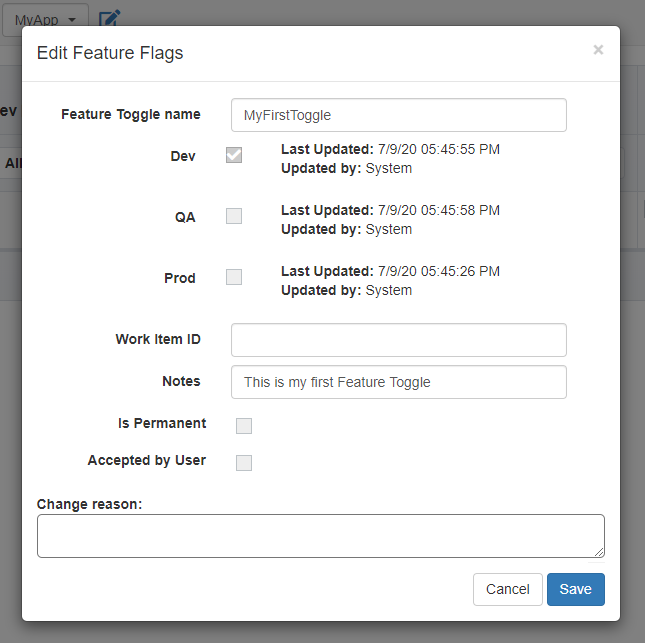
Name - If you change the name of the Feature Toggle, you will need to update the class in your client code to match
Work Item ID - This is used to reference an external ID from an Agile work tracking program like AzureDevOps or JIRA
Notes - Modify the notes field
Is Permanent - Mark this Toggle for long-term use. This prevents the delete function, and adds a label on the grid. This is to help organize your Toggles, and is useful when you want to use Moggles to control features like "Show Away Message" rather than short-lived Toggles that are deleted after the code goes live.
Accepted by User - Hides the Toggle from the main grid, but can be re-discovered by changing the default filters.
Change Reason - A brief note to describing why the value was toggled. This is useful to track why a feature toggle was turned OFF. This textarea will activate if a value is changed. It can be made required from the Environment setup. A list of previous change reasons will be displayed below, along with the username, date and environment.
Additional metadata is captured with each Feature Toggle. All Timestamps are displayed in UTC.
- Created Date - The date/time the flag was created on the Server/UI. This is displayed on the grid (right most column)
- Deployed - The date/time the client registered the class (see Advanced Features)
- Last Updated - The last date/time that the value of the Toggle was change (from on to off, or off to on)
To turn a Feature Toggle on or off, select the "trash" icon to the left of the name. Deleting the Feature Toggle will remove all history and status for all environments, this can NOT be undone. If a Feature Toggle is marked as Permanent, it can NOT be deleted, until the Permanent flag is first removed.