Server Advanced Features
The advanced features of Moggles requires that message queuing (provided by RabbitMQ and MassTransit) be enabled. To enable these features:
- Install and Configure a RabbitMQ server
- Create a user on RabbitMQ
- Configure the Messaging section in appsettings.json on the server
"Messaging": {
   "UseMessaging": "true",
   "Url": "rabbitmq://messageBusUrl",
   "Username": "user",
   "Password": "password",
   "QueueName": "my_moggles_deploy_status_queue"
}
- Configure the Client to also use Messaging
- .NET Framework web.config
  <appSettings>
    <add key="Moggles.UseMessaging" value = "true" />
    <add key="Moggles.MessageBusUrl" value="rabbitmq://myMessageBusUrl" />
    <add key="Moggles.MessageBusUser" value="user" />
    <add key="Moggles.MessageBusPassword" value="password" />
    <add key="Moggles.CacheRefreshQueue" value="my_cache_refresh_queue"/>
</appSettings>- .NET Core appsettings.json
"Moggles": {
    "UseMessaging": "true",
    "MessageBusUrl": "rabbitmq://myMessageBusUrl",
    "MessageBusUser": "user",
    "MessageBusPassword": "password",
    "CacheRefreshQueue": "my_cache_refresh_queue"
  }
The queues of my_moggles_deploy_status_queue and my_cache_refresh_queue can be any value, as long as they are unique values.
All the clients that are using the same server can have the same queue name for CacheRefreshQueue, but it is not required (the application name & environment name will be added to the provided value => my_cache_refresh_queue_appName_envName).
If the CacheRefreshQueue name is not provided, a temporary queue will be created (it will have a randomly assigned name & is going to be deleted when there are no consumers subscribed to the queue). ❗ For scaling purposes (multiple deployments of the client application are deployed with the same Environment name) the queue name should not be provided such that temporary unique queues are created & all clients are refreshed. This is needed because otherwise all clients application's instances will be subscribed to the same queue & will become competing consumers. ❗
The server and client will automatically create the queues on RabbitMQ, so you don't need to create them manually.
While it is theoretically possible to run multiple Moggle server deployments against a single RabbitMQ server, it is not fully tested, and may have unpredictable results. If you find yourself in this situation, please contact us, so that we can understand your Use Case, and help you find a solution.
By default, each client will cache the values of a feature toggle for 1 hour. This time can be adjusted (in the client configuration). We are using client caching to improve performance, and decrease network traffic. If you would like to have the Feature Toggle change take effect immediately, you can either restart the client application, or send a message over the bus to have the client update.
You can use this feature in two ways. First, just change the value of a Feature Toggle, in any environment, and the option to force a refresh is immediately presented. If change multiple environments at once, then a button for each environment will be presented.
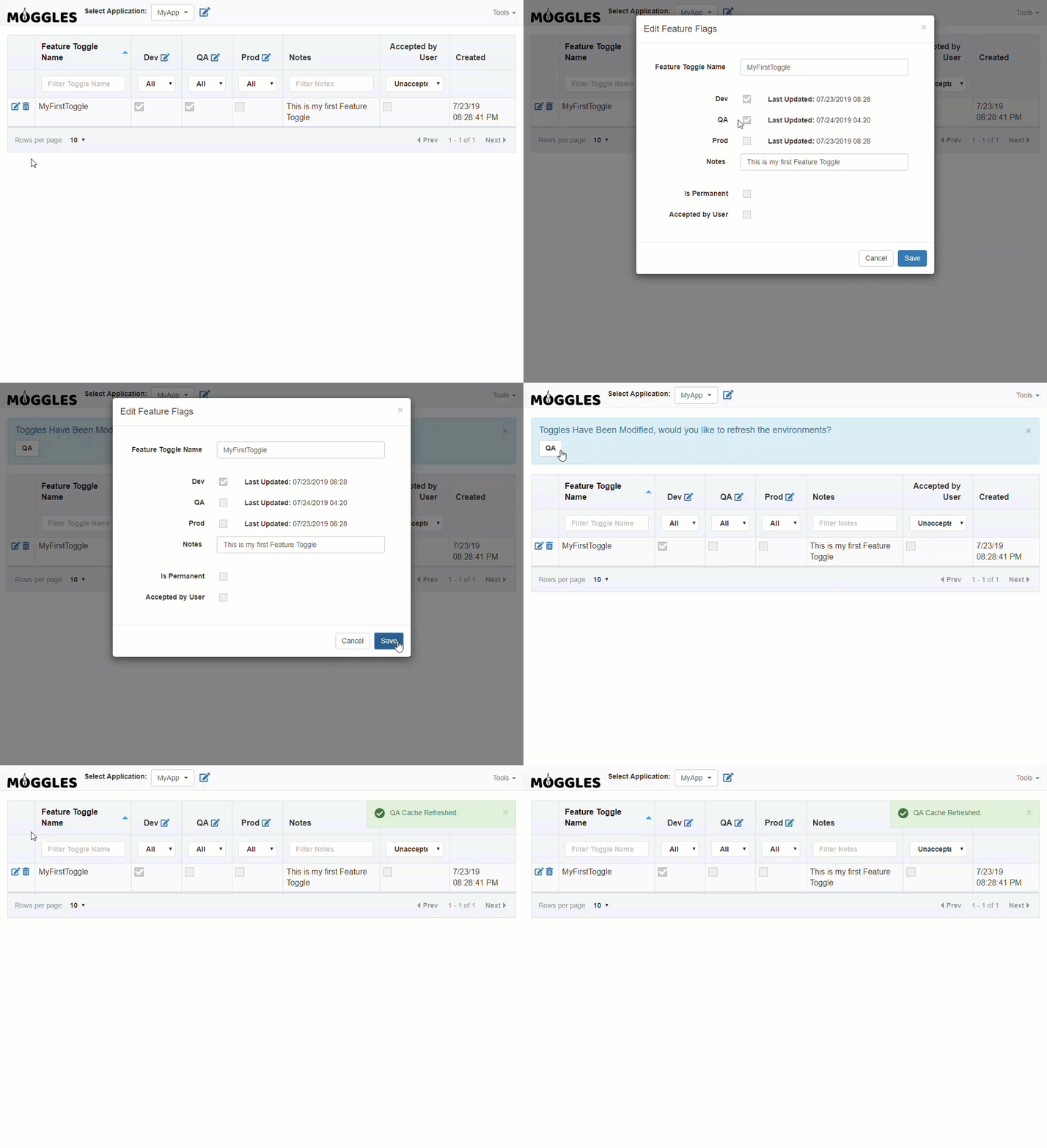
Alternatively, you can use the Tools menu option of Force Cache Refresh, and select the environment of your choice.
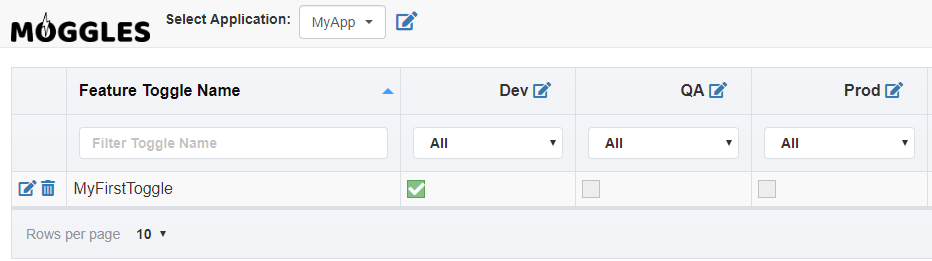
If your application has multiple environments and is part of a CI/CD release pipeline, then it can sometimes be challenging to know if your code update, where you added the Feature Toggle class to the client application, is on any particular environment. We have solved this by displaying a green background for that environment when we detect the Feature Toggle class for that environment. Note, we are ONLY detecting the class, as opposed to it's use, or even proper use.
In our example, I have deployed my code to Dev, and therefor the background in the grid for the Dev checkbox is green, but QA and Prod remain grey, because the code has NOT been deployed.
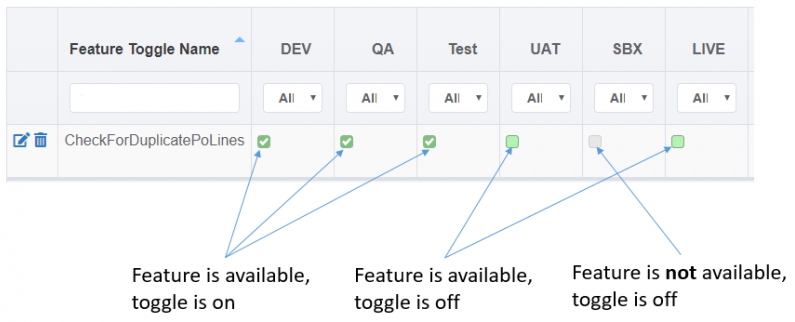
In this example, we can see more complex interactions
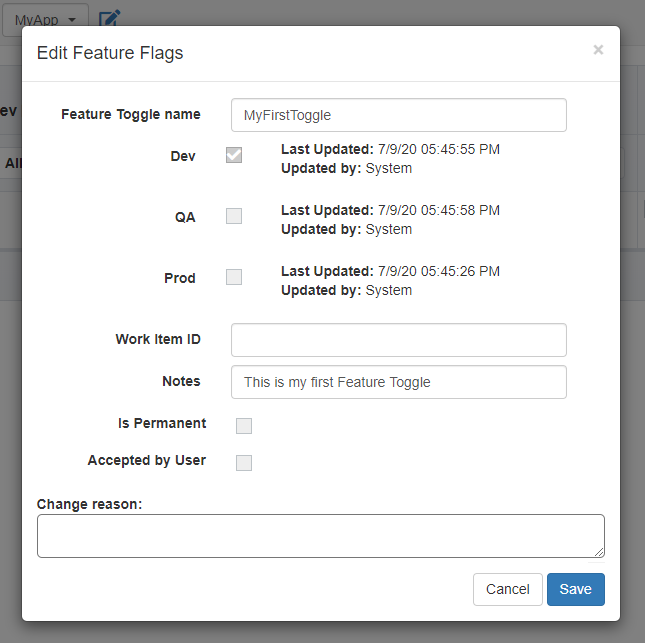
Additionally, if you click the "pencil" icon, you will again see the green/grey colors as well as details. You are able to see the date and time that the code FIRST reach the environment as "Deployed". Since code is deployed many times, we only capture the first date. The time is displayed in UTC.