
 →
→
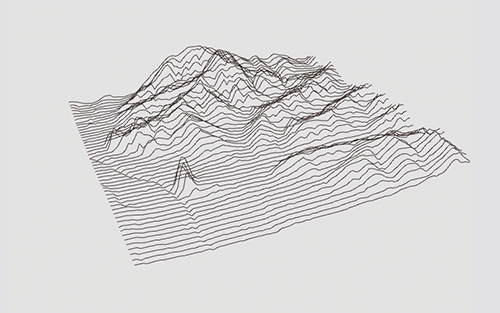
A browser-based tool that turns a grayscale heightmap image into interactive 3D line art. All controls live in a collapsible side panel — no coding required.
sorny.github.io/heightmap_lines
Browsers block local image loads over file://, so serve it with any static server:
python3 -m http.server 8000
# open http://localhost:8000
Or skip the server entirely — use the Load Heightmap button to upload any image directly from your machine.
Tangrams Heightmapper exports grayscale PNGs from OpenStreetMap data. Drop the result into data/Heightmap.png to use it as the default.
| Control | What it does |
|---|---|
| Resolution | Sampling density — higher = more points per line |
| Line spacing | Pixel gap between adjacent lines |
| Elev scale | Multiplies peak height (0 = flat → 5× = dramatic) |
| Blur | Box-blur the heightmap before sampling (integral image, stays fast at any radius) |
| Shift lines / Shift peaks | Sub-pixel sampling offset for fine placement |
| Elev min cut / Elev max cut | Exclude elevations outside the 0–100% range from drawing (e.g. cut flat lake areas) |
Visualises the heightmap's brightness histogram. Drag the handles directly on the histogram or use the Shadows / Highlights sliders to clip the brightness range before elevation mapping.
| Control | What it does |
|---|---|
| Tilt | X-axis perspective angle |
| Zoom | Canvas scale (10–400%); also scroll wheel |
| Rotation | Z-axis rotation; ±45° buttons, free slider, auto-rotate toggle |
| Pan | Click-and-hold arrow buttons or W A S D keys |
| Control | What it does |
|---|---|
| Lines | Toggle line drawing; color picker and stroke weight |
| Points | Toggle point markers; color picker, size, and optional particle animation |
| Draw mode | X · Y · Curves · Cross · Hachure · Contours |
| Curve tightness | Catmull-Rom spline tightness (−5 to 5); Curves mode only |
| Hachure length | Tick length multiplier; Hachure mode only |
| Contour interval | Elevation units between isoline levels; Contours mode only |
| Fill | White terrain surface fill |
| Mesh | Wireframe mesh overlay |
| Background | Canvas background color |
| Elev gradient | Blend line color from base → high-elevation color |
| Wt by elev | Stroke weight increases with elevation; range slider controls spread |
| Opacity/slope | Line alpha driven by local terrain slope |
| Mode | Description |
|---|---|
| X / Y | Horizontal or vertical ridge lines with depth-correct white-wall occlusion |
| Curves | Catmull-Rom splines along ridgelines |
| Cross | Both X and Y ridge lines simultaneously |
| Hachure | Slope-perpendicular tick marks; length proportional to gradient magnitude |
| Contours | Marching-squares isolines at fixed elevation intervals |
Enable under Points → Animate. Particles spring back to their terrain home positions while Brownian noise, damping, and optional gravity keep them in motion. Velocity trails can be toggled on/off.
| Button | Output |
|---|---|
| SVG | Visibility-aware vector — occluded lines omitted via horizon algorithm |
| DXF | 2D projected LINE entities |
| PNG | Current canvas raster; 1×, 2×, or 4× scale |
| WebM | Records a video of the canvas for the configured duration |
| Preset ↓ / ↑ | Save or load all panel settings as a JSON file |
| Key | Action |
|---|---|
| W A S D | Pan |
| Y / X | Tilt up / down |
| Q | Toggle auto-rotate |
| E | Rotate +45° |
| T | Reset rotation |
| I / K | Decrease / increase resolution |
| J / L | Decrease / increase line spacing |
| B / N | Increase / decrease stroke weight |
| F | Cycle draw mode |
| M | Toggle mesh |
| O | Toggle mesh stroke |
| P | Toggle fill |
| ↑ ↓ | Shift lines |
| ← → | Shift peaks |
| 1 | Export SVG |
| 2 | Export DXF |
| 3 | Export PNG |
| 4 | Toggle WebM recording |
- Elevation cutoff sliders — Elev min/max cut in the Terrain section hides geometry (lines, fill, mesh) outside the selected 0–100% elevation range; ridgeline gaps appear mid-row rather than dropping whole lines; SVG export respects the cutoff across all draw modes
- Gradient-aware fill — when Fill and Elevation gradient are both active, the terrain surface and ridgeline walls are colored per-vertex using the gradient LUT instead of flat white
- Jet gradient preset — classic dark-navy → blue → cyan → green → yellow → orange → red → dark-red DEM colormap replaces Cool
- 0% / 100% gradient stop protection — anchor stops cannot be deleted; their delete button is hidden when selected
- WebM record hotkey 4 — consistent with the 1 / 2 / 3 export shortcuts
- Fixed: SVG export colors match viewport — when gradient, stroke-by-elevation, or slope-opacity are active, each ridgeline segment, contour level, hachure tick, and curves segment now carries its own per-segment stroke color; row-average approximation removed
- Fixed: elevation cutoff applies to fill and mesh — terrain surface triangles and mesh vertices outside the cut range revert to background color
- UI: improved sidebar readability — keyboard shortcut labels, section titles, and export hints lifted from near-invisible dark gray to readable mid-gray
- UI: loading overlay redesigned — card with rounded border replaces bare text on dim backdrop; text color and size improved
- Collapsible panel sections — click any section header to collapse or expand it
- Elevation gradient editor — multi-stop gradient picker replaces the single high-color picker; drag handles to reposition stops, click the bar to add new stops, delete unwanted ones
- Gradient presets — eight one-click presets: Mono, Classic, Fire, Ocean, Topo, Sunset, Cool, Cyber
- Fixed: elevation gradient on ridgeline modes — X / Y / Curves / Cross now apply the gradient per vertex rather than per row average, so peaks correctly reach the high-elevation color
- Fixed: PNG 2× / 4× export — uses
pixelDensity()instead of canvas resize, producing an exact viewport match at higher resolution
- Auto-rotate speed — slider appears in the View section whenever auto-rotate is enabled
- Preset embedding — saved presets include the loaded heightmap as base64 PNG, making them fully self-contained; loaded presets restore the heightmap automatically with a loading spinner
- Center guides — crosshair overlay toggled from the View section; color adapts to background brightness
- Heightmap filename — displayed below the Load button after uploading a custom image
MIT