Guide: New Project From Scratch
This guide will walk through the process of starting with an empty directory and ending with a working website with SSL. The following assumptions in this guide are just reasonable defaults not requirements. You may need to adjust commands based on your environment.
ASSUMPTIONS:
- Composer for PHP is installed system wide.
- User is setup to be able to use
sudo.- Server is Apache 2.4.
- AcmePHP is setup in
/opt/ssl(there are instructions below).
It is mentioned and referenced that the project is running on Apache. Support for other servers will be added over time to the nice easy command wrappers. That is just what we use here for now.
Setup:
composer require netherphp/atlantisatlantis init -ycomposer dumpautoload- it now is "working":
php -S localhost:8080 -t wwwhttp://localhost:8080
Apache Config + SSL:
-
edit conf/config.php
-
edit conf/env/dev/apache24.conf, but keep using the
HTTPmacro for now. -
atlantis webserver-link --sudo -
atlantis webserver-rehash --sudo -
Apache should now be serving the project over HTTP.
-
atlantis acmephp-config -
atlantis acmephp-run --sudo -
edit conf/env/dev/apache24.conf to use the
HTTPSmacro now instead. -
atlantis webserver-rehash --sudo -
Apache should now be serving the project over HTTP and HTTPS.
NOTE:
- While project is in testing phase you will need
minimum-stability: "dev"in yourcomposer.jsonbefore any of this will work.{ "minimum-stability": "dev" }
Add netherphp/atlantis as a, technically the only, project requirement.
composer require netherphp/atlantisHave Atlantis configure itself and setup the basic directory structure. We use the -y option to force all overwrites knowing that this is also going to overwrite the currently spartan composer.json we just created with the command above.
atlantis init -yHave Composer re-dump its autoload indexes after Atlantis finishes.
composer dump-autoloadAt this stage the project directory is ready to serve over HTTP. You may add your own routes to the Routes namespace autoloaded from the routes directory. Local project classes can be created and autoloaded with the provided Local namespace already configured to autoload from the core/Local directory.
Want to quick test? Spin up the PHP dev server and hit it in your browser.
php -S localhost:80 -t www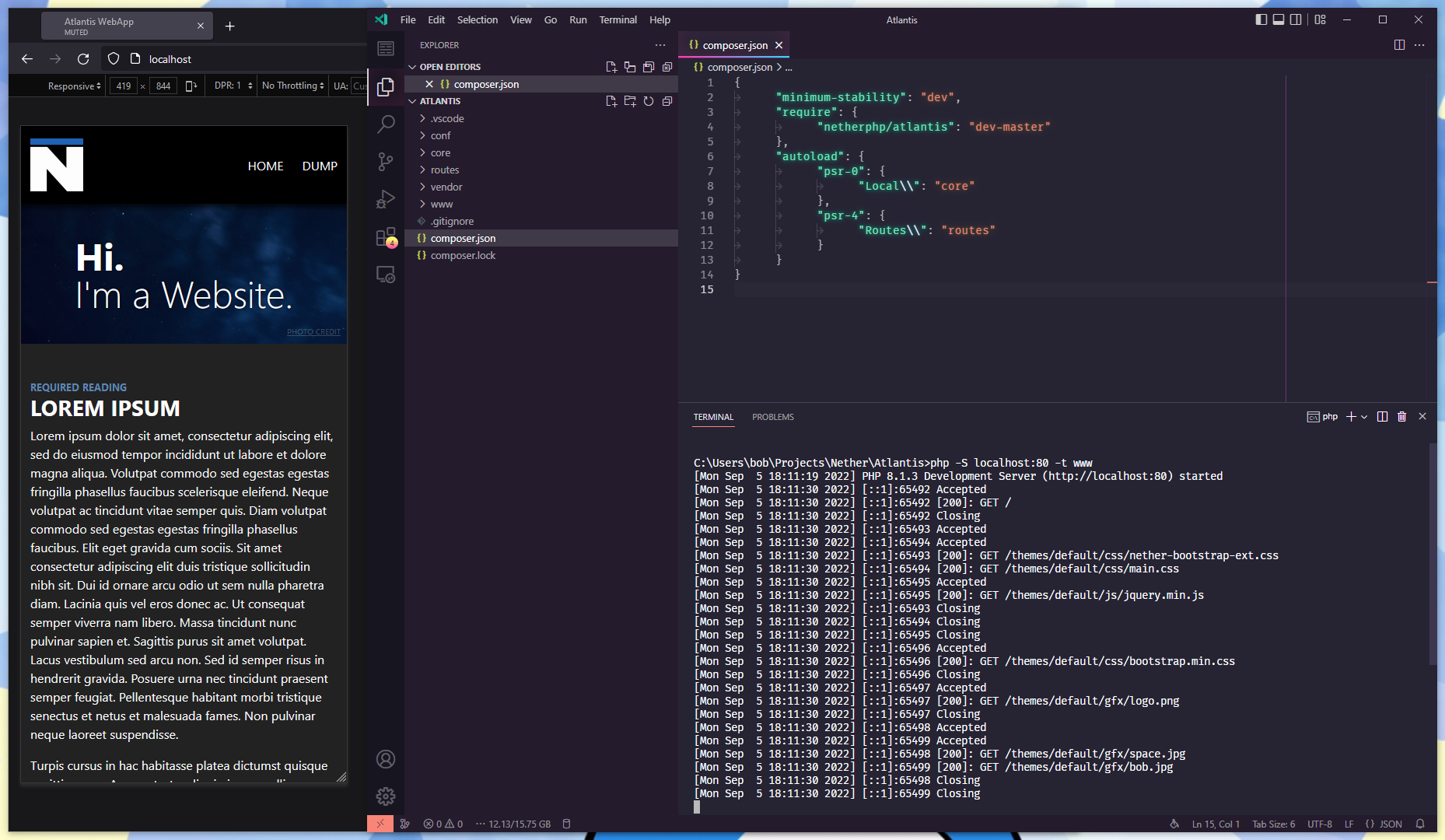
This project currently contains tools to make setting up Apache web servers easier. If you are not using Apache you will need to use some brainthink to translate what this section does to be applicable to you. Presently there are two example config files included.
This config file sets up the Apache VHost and provides an HTTP and HTTPS macro. First time boot you will likely use the HTTP macro until you can acquire your SSL cert, after which swap to the HTTPS macro.
This config file sets up the Apache mod_rewrite settings to direct requests to the application router www/index.php. It also includes a section for forcing HTTPS which can be uncommented AFTER you acquire your SSL cert.
Edit those two file accordingly and then push the config into the web server.
# automatic method
atlantis webserver-link --sudo
atlantis webserver-rehash --sudo

# manual method
sudo ln -s /path/to/project/conf/env/dev/apache24.conf /etc/apache2/sites-enabled/100-dev-project.conf
sudo apachectl graceful
At this stage you should be able to serve your project as configured over HTTP.
If this is your first time setting up AcmePHP installation is simple.
- https://github.com/acmephp/acmephp/releases/tag/2.0.0
- Download
acmephp.pharand put it in/opt/ssl - Download
acmephp.phar.pubkeyand put it in/opt/ssl - Done.
First fill in all the AcmePHP values in your conf/config.php file to be valid.
Then generate the AcmePHP YAML config file.
atlantis acmephp-configThen have AcmePHP grab and install your SSL cert. If any of the configuration was wrong it will explode gloriously. If it does, fix whatever was wrong and try it again by re-running acmephp-config if you made any changes to your config.php file.
# automatic method
atlantis acmephp-run --sudo --rehash

# manual method
sudo /opt/ssl/acmephp.phar run /path/to/project/conf/env/dev/acmephp.yml
sudo apachectl graceful
Once AcmePHP has finished successfully refer back to the previous section about setting up the web server. There is an HTTP macro in the config file, change the line related to your domains to use HTTPS instead to enable both http:// and https:// service. You likely need to rehash the web server after changing that macro.
atlantis webserver-rehash --sudoIf you would like to force requests to redirect over HTTPS refer back to the previous section mentioning the .htaccess file - uncomment the lines relating to forcing HTTPS:
RewriteCond %{HTTPS} !=on
RewriteCond %{REQUEST_URI} !^/\.well-known
RewriteRule ^ https://%{HTTP_HOST}%{REQUEST_URI} [L,R=301]
This will cause the server to redirect all http:// requests to https:// unless the request was for the .well-known directory, which is a small trick to make automatic SSL renewals work later.
Add the acmephp-run command to your crontab which you can edit with crontab -e.
20 4 * * 1 sudo /path/to/project/vendor/bin/atlantis acmephp-run --rehashEvery Monday morning at 4:20am it will check if the SSL cert is up for renewal and deal with it.
The environment is currently selected via the env.lock file in the Project Root. If no lock file is specified the default is dev. To make a production environment, copy your conf/env/dev folder to conf/env/prod, change what needs to be changed, and set the env.lock file to the name of the environment. The only thing that matter is you have a conf/env directory matching your env.lock file.
echo "prod" > env.lock