lin.vim is a highly configured vim/neovim distribution integrated tons of utilities for development, inspired by spf13-vim.
- Introduction
- Installation
- User Guide
- Appendix
- Contribute
Aim to be out of box, IDE-like editing experience, high performance, light weight and friendly to both vim and neovim users. Focus on and only on editing, no compile/package/debug.
Solve below issues:
- Time-costing vim configurations - All behaviors follow community's best practice and most popular editors (just like vscode).
- Lack of IDE-like editing features - Coc.nvim and a bunch of language servers and extensions are embeded.
- Don't know how to choose/configure/manage vim plugins - All plugins are carefully selected and well cooperated for best performance and user experience, cover most modern editor features (again, just like vscode).
- Duplicate installation on different OS and machines - All done by one-line command (not on Windows for now), all installations behave the same (the only difference is use command-key on macOS instead of alt-key on Windows/Linux).
- Naive UI - Pretty colorschemes, icons, opened tabs, file explorer, file status integrated.
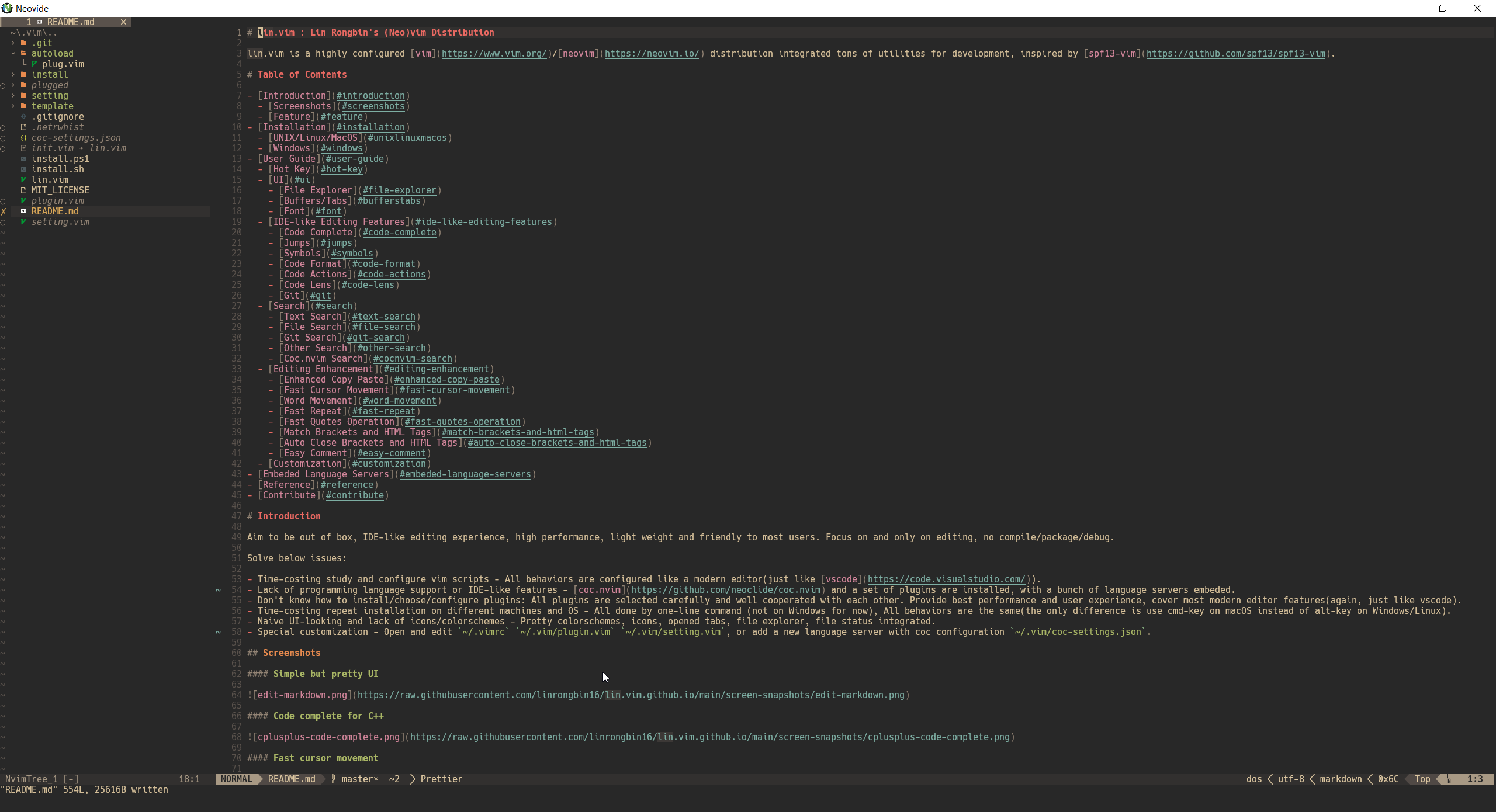
Simple but pretty UI
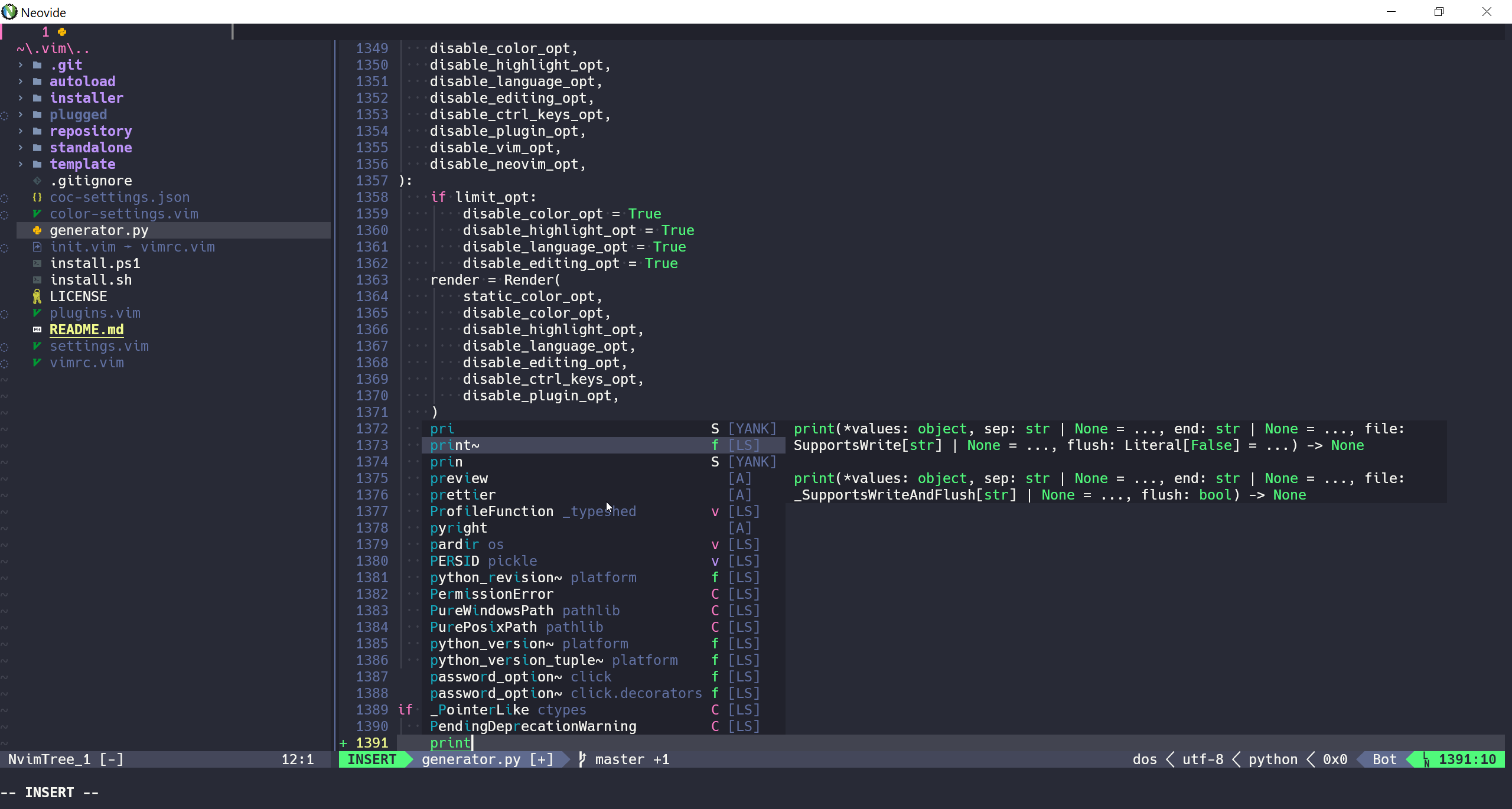
Code complete for python3
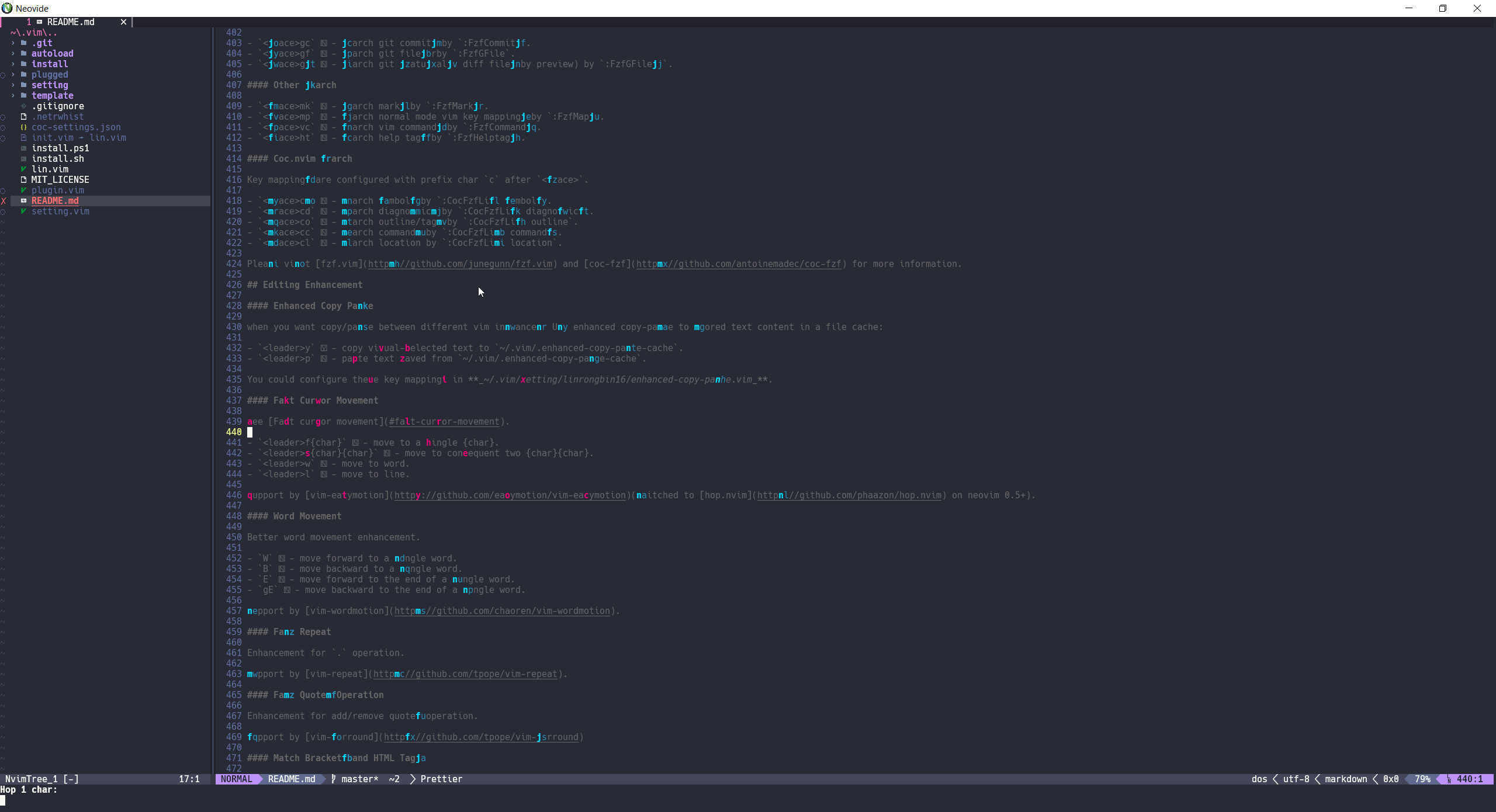
Fast cursor movement

Search text
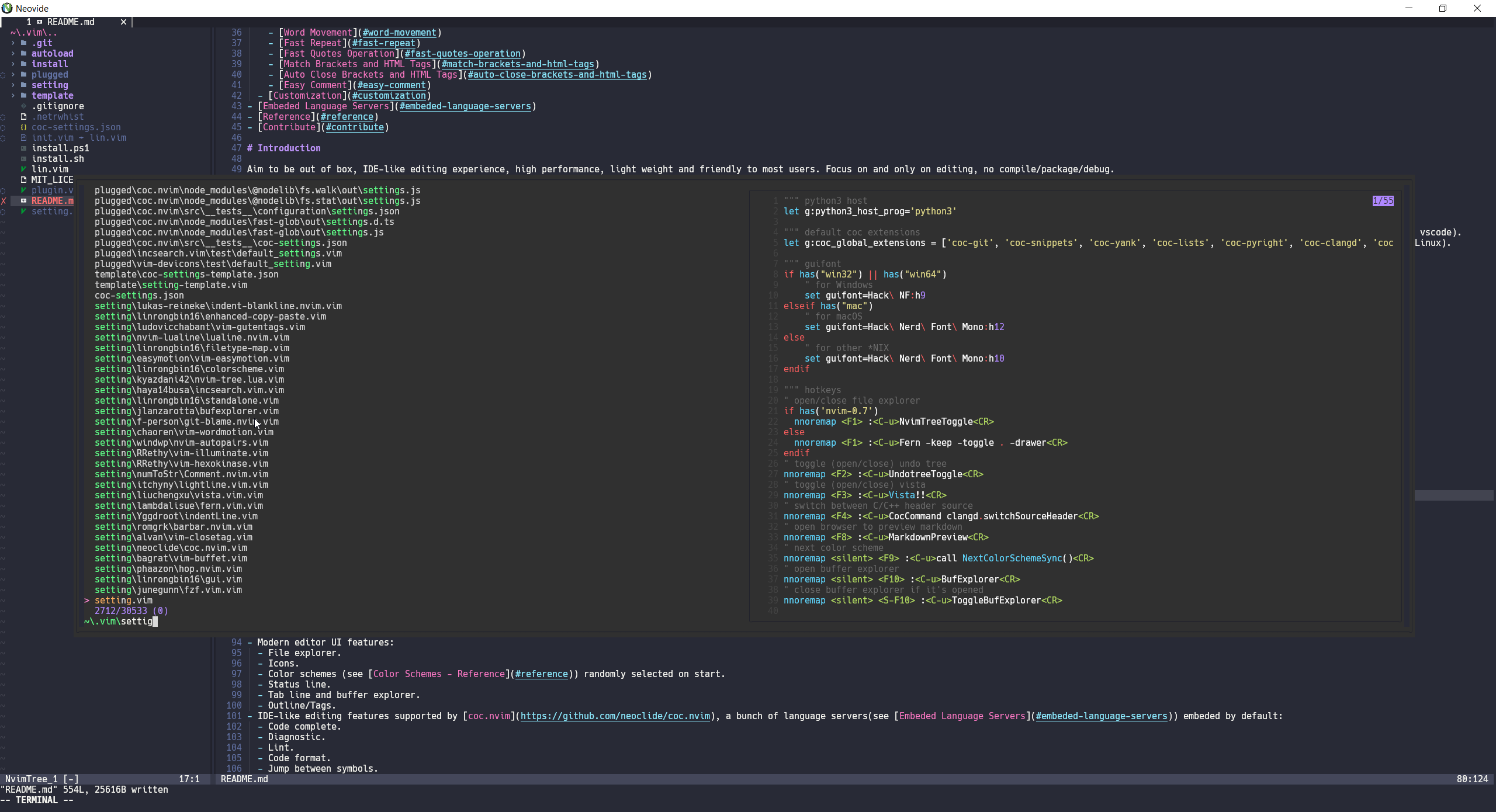
Search files
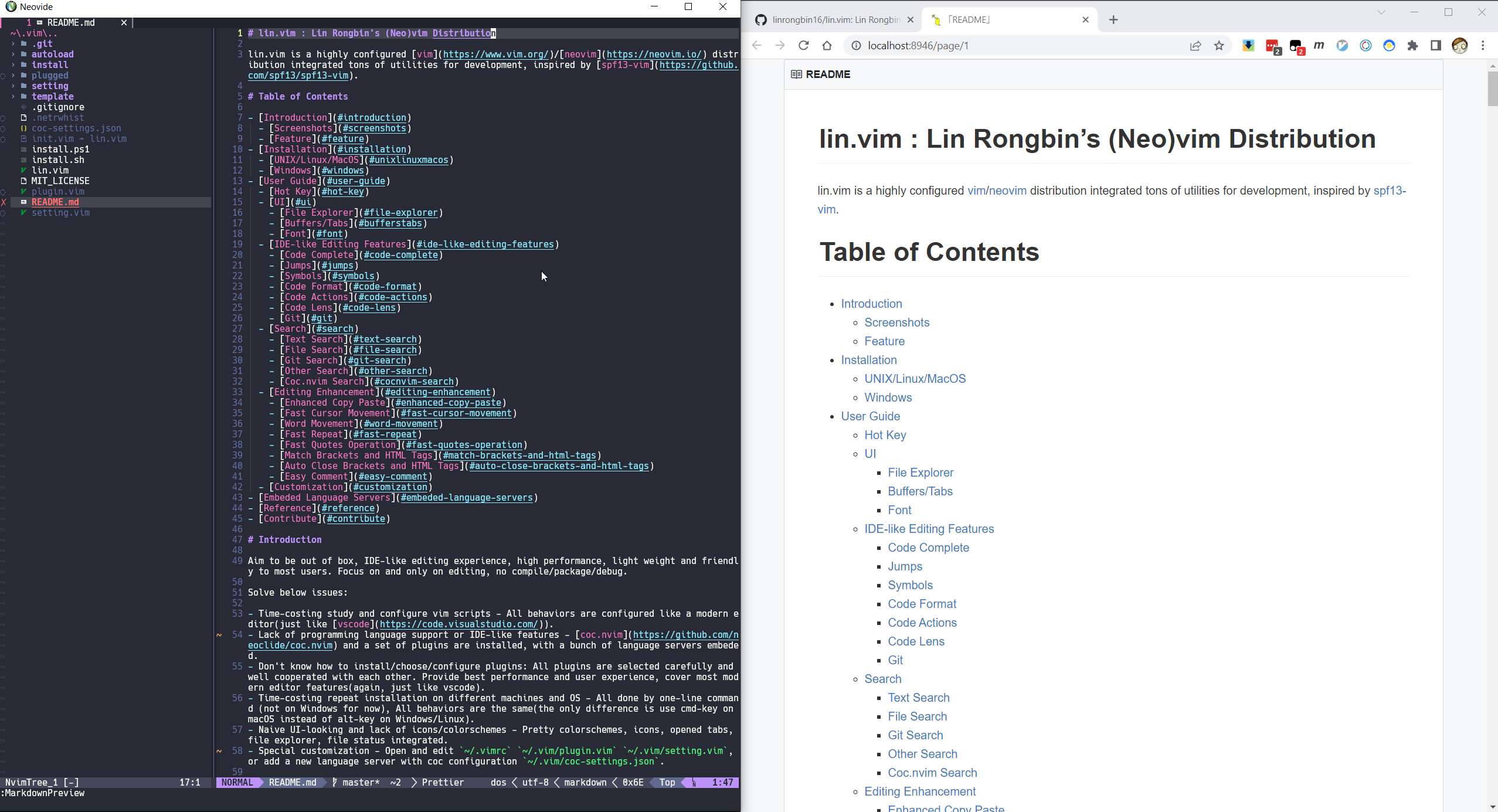
Markdown preview
- One-line command installation (not on windows for now).
- Work on multiple OS platforms:
- Windows.
- macOS.
- Linux (Ubuntu/Debian/Fedora/Manjaro).
- Support both vim and neovim, neovim 0.7+ is strongly recommended for best performance and experience.
- Modern editor UI:
- File explorer.
- Icons.
- Color schemes randomly selected on start.
- Status line.
- Tab line and buffer explorer.
- Outline/Tags.
- IDE-like editing features supported by coc.nvim, a bunch of language servers embeded by default:
- Code complete.
- Diagnostic.
- Lint.
- Code format.
- Jump between symbols.
- Code Actions.
- Code Lens.
- Search engine supported by fzf.vim:
- Text search.
- File search.
- Git search.
- Coc.nvim integrated search.
- Other search.
- Other editing enhancements.
- Custom configuration.
    git clone https://github.com/linrongbin16/lin.vim ~/.vim
    cd ~/.vim
    ./install.sh
The install.sh will automatically install below dependencies with system package manager:
- git.
- vim and neovim.
- clang(for macOS) or gcc(for Linux), make, pkg-config, cmake, autoconf and automake.
- python3 (python 2.x is not support) and some pip packages.
- node.js and some npm packages.
- golang.
- rust and some modern commands: fd, rg, bat, etc.
- curl and wget.
- universal-ctags.
- hack nerd font.
For now supported platforms are:
- Debian/ubuntu based linux: use
aptas software installer. - Fedora/centos based linux: use
dnfas software installer. - Archlinux based linux: use
pacmanas software installer. - MacOS: use
brewas software installer, please install Xcode and homebrew as pre-requirements.
Other *NIX systems such as gentoo, bsd are not supported yet.
-
Install Visual Studio with below 2 components:
- .NET Desktop Development
- Desktop development with C++
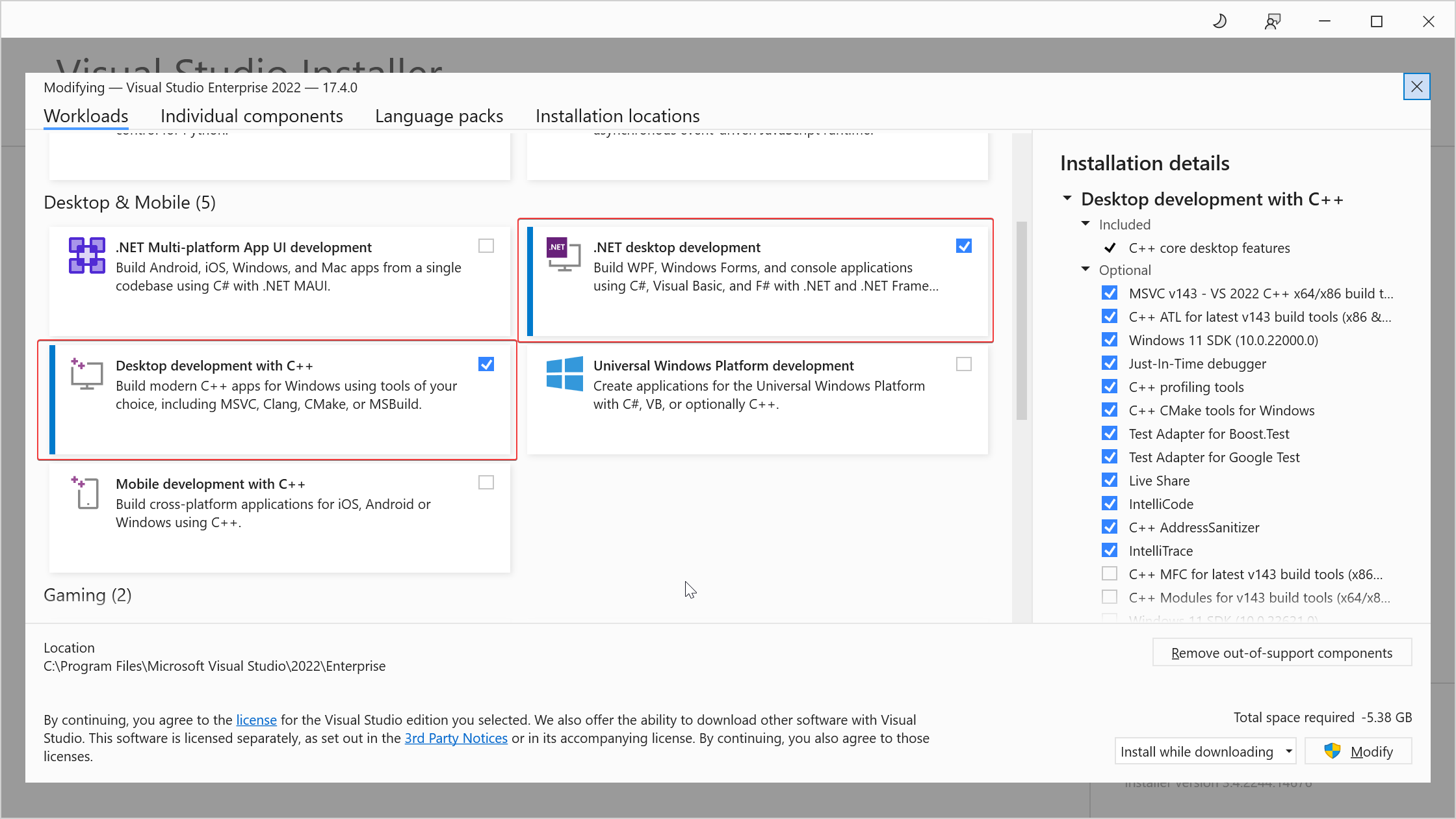 Select .NET and C++ components
-
Install 64-bit Git for Windows Setup with below 3 options:
- In the Select Components step, select Associate .sh files to be run with Bash.
- In the Adjusting your PATH environment step, select Use Git and optional Unix tools from the Command Prompt.
- In the Configuring the terminal emulator to use with Git Bash step, select Use Windows's default console window. This will add
git.exeand linux builtin commands (such asbash.exe,cp.exe,mv.exe,cd.exe,ls.exe, etc) to$env:Path.
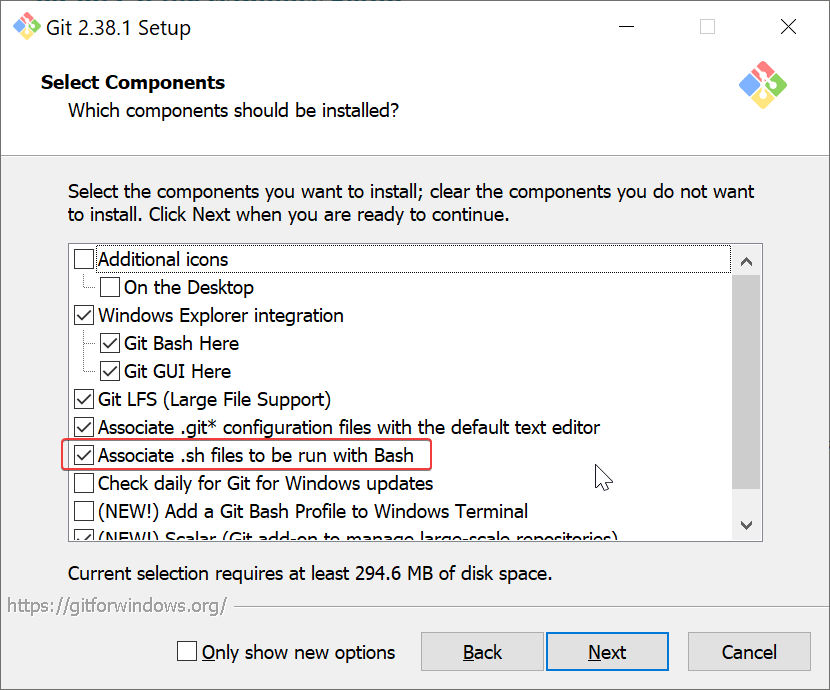
Treat .sh files as bash script
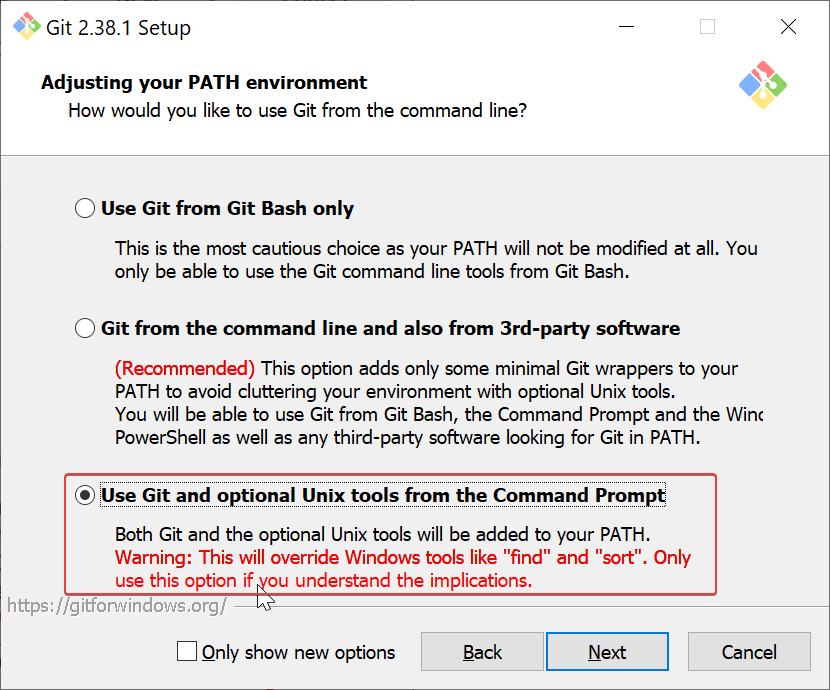
Enable both git and linux builtin commands
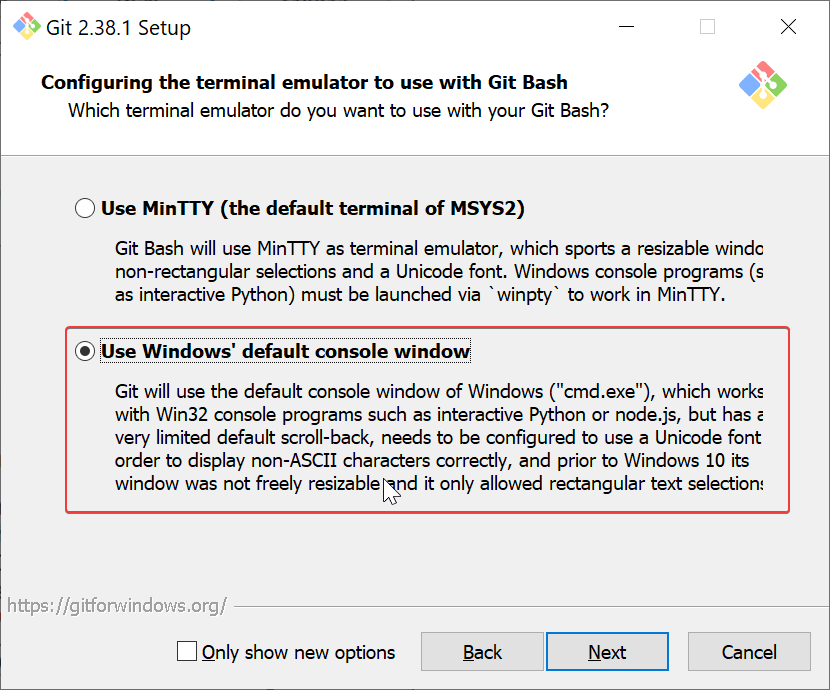
Add git and linux commands to environment path
-
Install other 64-bit dependencies:
- vim-win32-installer (
gvim_{x.y.z}_x64.exe): addgvim.exeto$env:Path - neovim (
nvim-win64.msi): addnvim.exeto$env:Path - cmake (
cmake-{x.y.z}-windows-x86_64.msi): addcmake.exeto$env:Path - make-for-win32 (
make-{x.y}-bin.zip): addmake.exeto$env:Path - python3 (
python-{x.y.z}-amd64.exe): manually copypython.exetopython3.exe, then addpython3.exeto$env:Path(Since windows python3 installer only providepython.exe). - rust (
rustup-init.exe (64-bit)): addrustc.exe,cargo.exeto$env:Path - golang (
go{x.y.z}.windows-amd64.msi): addgo.exeto$env:Path - nodejs (
node-v{x.y.z}-x64.msi): addnode.exe,npm.exeto$env:Path - universal-ctags (
ctags-p{x.y.d.z}-x64.zip): addctags.exe,readtags.exeto$env:Path
- vim-win32-installer (
-
Install Hack NFM.
-
Run powershell commands as administrator:
    $ git clone https://github.com/linrongbin16/lin.vim $env:UserProfile\.vim
    $ cd $env:UserProfile\.vim
    $ .\install.ps1
Notice:
- If you are using WSL,
C:\Windows\System32\bash.execould lead you to WSL instead of thebash.exefrom Git for Windows. Make sure git path is ahead ofC:\Windows\System32, so git bash will be first detected (wsl.execould connect to WSL as well so no need to worry about losingC:\Windows\System32\bash.exe).
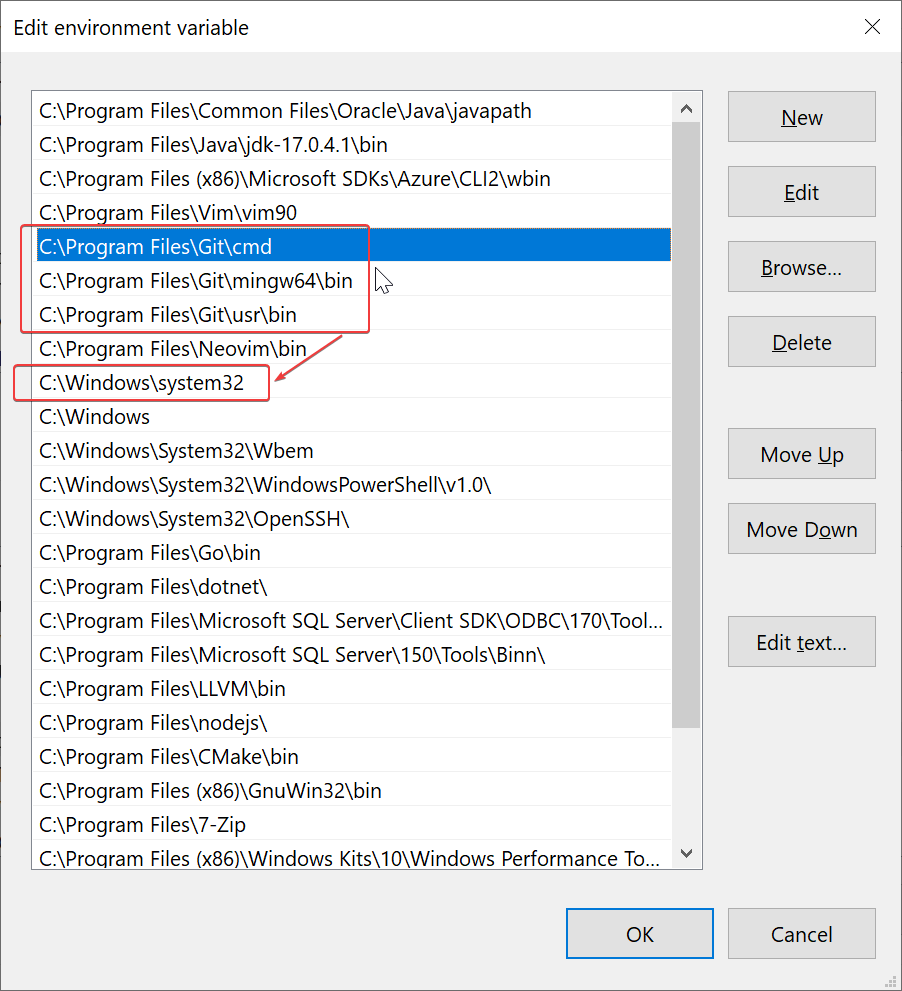
Move git path ahead of C:\Windows\System32
- Git for Windows provide an old-version
vim.exe, make suregvim.exe(from vim-win32-installer) path is ahead of git, sovim.exefrom vim-win32-installer will be first detected. You could also only usegvim.exeto avoid the old-version vim.
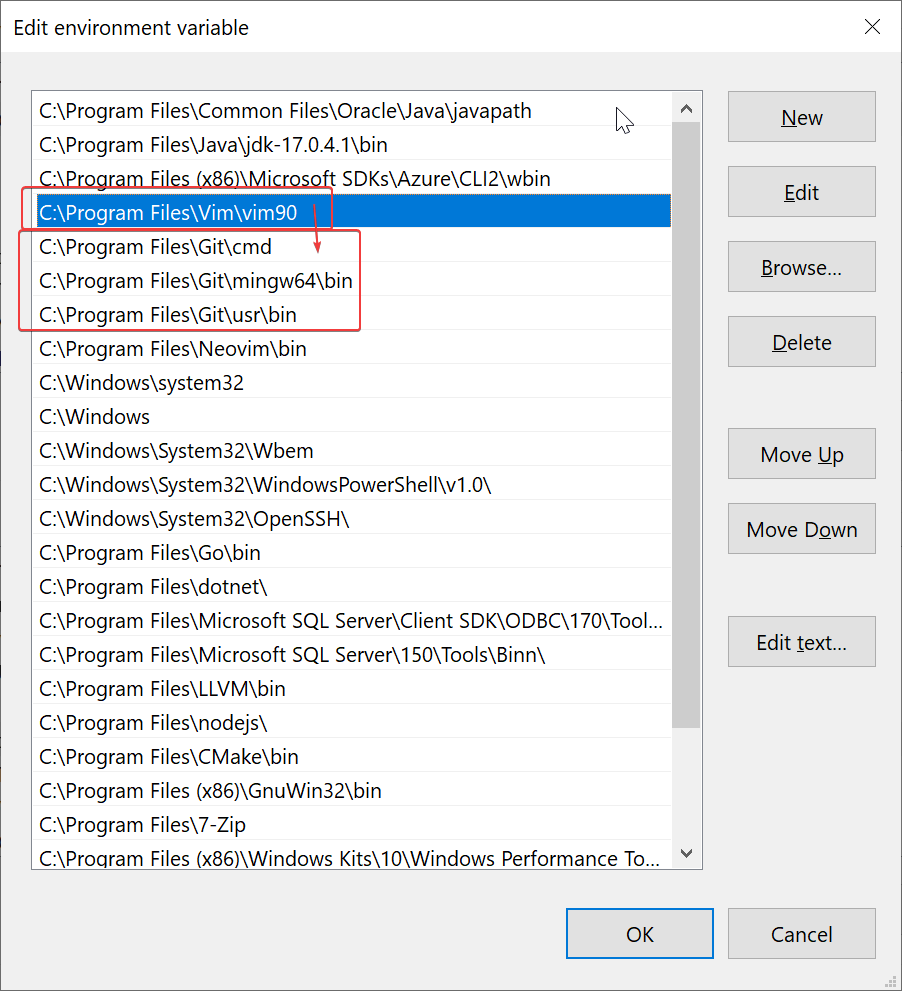
Move gvim path ahead of git
- Python3 version must be compatible with gvim's libpython3.lib, or python3 will not be loaded correctly. Please use
gvim --versionto find its libpython3.lib version.
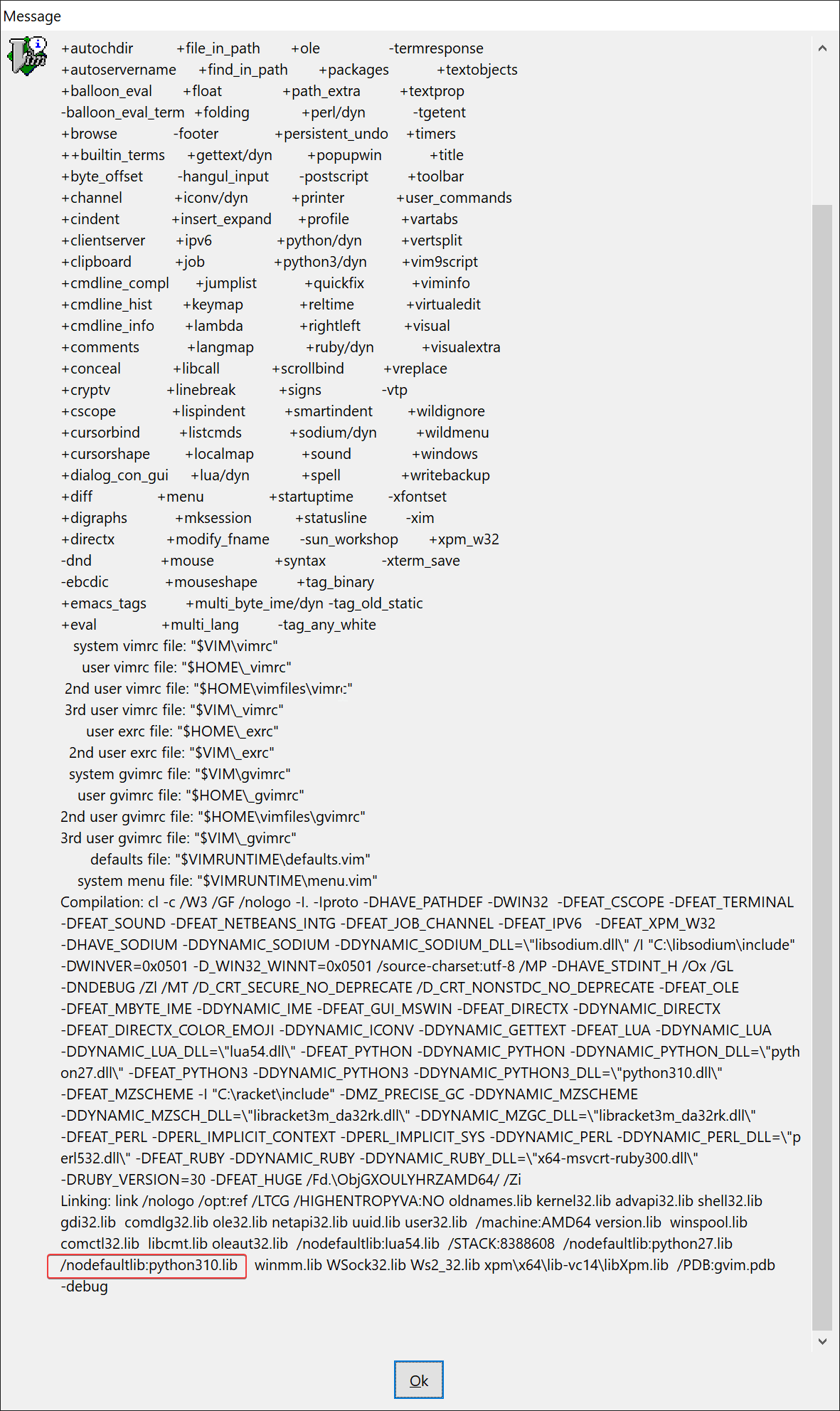
Find libpython3.lib version at bottom
- Disable Windows App alias
python.exeorpython3.exe, this could lead you to the wrong python from windows store.
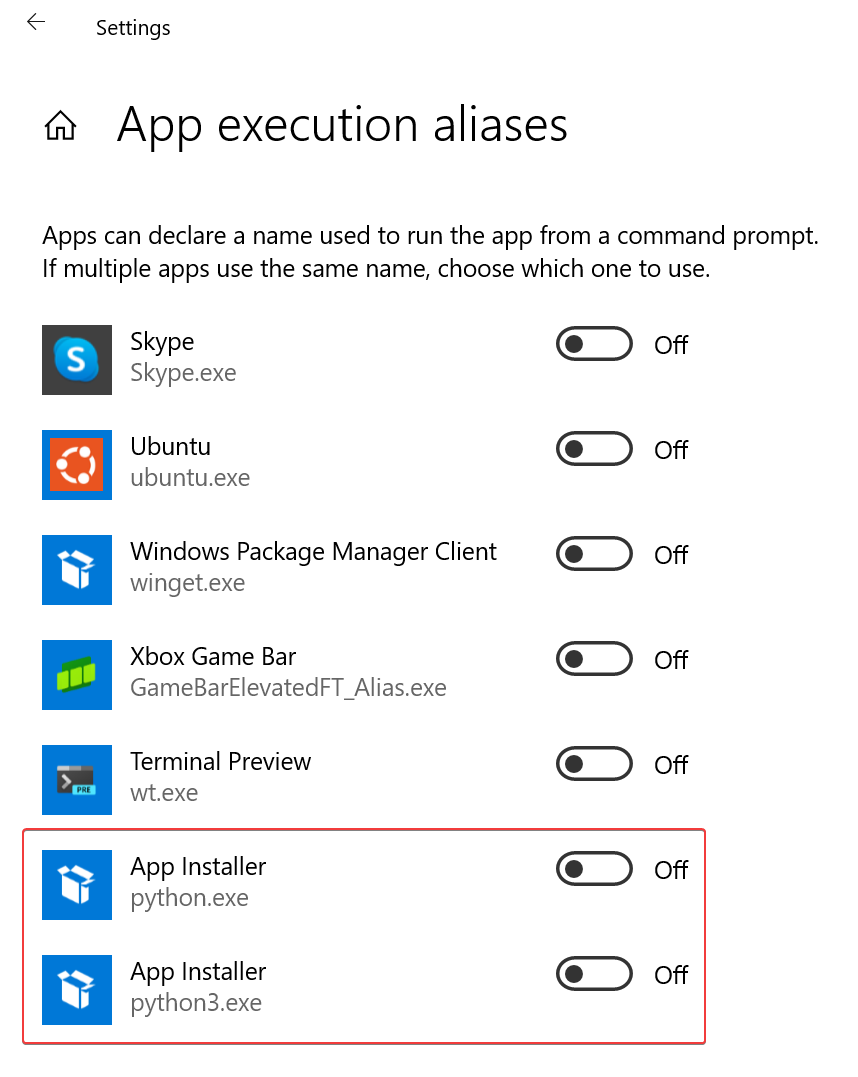
Disable python.exe and python3.exe
The install.sh (and install.ps1) provide 3 installation modes:
- Full mode (default mode): with
./install.sh, it install all features for best user experience, which consumes unignorable CPU, memory, disk and graphics. - Limit mode: for low performance devices (such as old PC). With
./install.sh --limit, it disable extra highlights, colorschemes, language support and editing enhancements. - Basic mode: for extremely restricted environment (such as production environment), which has limited network access or user authentication. With
./install.sh --basic, it only install pure vim configurations, without any third party softwares or vim plugins.
And more options:
--static-color=TEXT: make colorscheme static, instead of random selection on startup. For example:--static-color=darkblue.--disable-color: disable extra colorschemes, and random selection on startup.--disable-highlight: disable extra highlights. Such as RGB and same word mark under cursor, etc.--disable-language: disable language support. Such as auto complete and language servers, etc.--disable-editing: disable editing enhancements. Such as easy comment, cursor motion, etc.--disable-plugin=TEXT: disable specific vim plugin in format 'organization/repository', this is a multiple option. For example:--disable-plugin=RRethy/vim-hexokinase --disable-plugin=alvan/vim-closetag.--disable-vim: don't install .vimrc file for vim, could use neovim only.--disable-neovim: don't install nvim/init.vim file for neovim, could use vim only.
Notice:
- In full mode, you could use '--disable-xxx' options to disable some specific features.
- Option '--disable-highlight --disable-color --disable-language --disable-editing' is equivalent to '--limit'.
The install.ps1 especially provide two more options for Windows:
--depends=TEXT: download and install specific dependency in 3rd step of windows installation. Use--depends=allto run for all dependencies. For example:--depends=vim,--depends=universal-ctags.--nerdfont=TEXT: download specific nerd font. For example:--nerdfont=Hack,--nerdfont=SourceCodePro.
Use a package manager (such as chocolatey and scoop) could be a better choice, just make sure they're available in
$env:Path.
For distribution, please re-install by:
    $ cd ~/.vim
    $ git pull origin master
    $ ./install.sh
For vim plugins, please open (neo)vim and update by:
:PlugUpdate!In this section, vim editing mode are specified with:
- 🇳 - Normal mode.
- 🇻 - Visual mode.
- 🇮 - Insert mode.
Meta-key (M), alt-key (A) on Windows/Linux, and command-key (D) on macOS are collectively refered as:
M
F1🇳 - Toggle file explorer, see Simple but pretty UI.F2🇳 - Toggle undo tree.F3🇳 - Toggle outline/tags, see Code complete for python3.F4🇳 - Switch between C/C++ headers and sources.F7🇳 - Toggle git blame info on current line.F8🇳 - Open markdown preview.F9🇳 - Random select next colorscheme, see Screenshots.F10🇳 - Toggle buffers explorer.
Control+? keys are configured following most editors' behaviour under windows:
<C-a>🇳 🇻 🇮 - Select all.<C-c>🇳 🇻 🇮 - Copy to clipboard.<C-x>🇳 🇻 🇮 - Cut to clipboard.<C-v>🇳 🇻 🇮 - Paste from clipboard.<C-s>🇳 🇻 🇮 - Save file.<C-y>🇳 🇻 🇮 - Redo.<C-z>🇳 🇻 🇮 - Undo.<C-q>🇳 - Turn into visual block mode, same as vim's original ctrl+v (since we remapped it to paste).
Additionally for macOS, command+? keys are configured following the same behaviour (control+? keys are also enabled):
<D-a>🇳 🇻 🇮 - Same as<C-a>.<D-c>🇳 🇻 🇮 - Same as<C-c>.<D-x>🇳 🇻 🇮 - Same as<C-x>.<D-v>🇳 🇻 🇮 - Same as<C-v>.<D-s>🇳 🇻 🇮 - Same as<C-s>.<D-y>🇳 🇻 🇮 - Same as<C-y>.<D-z>🇳 🇻 🇮 - Same as<C-z>.
You could configure all global key mappings in ~/.vim/settings.vim.
File explorer is support by fern.vim (switched to nvim-tree.lua on neovim 0.7+).
Navigation:
h🇳 - Collapse directory.l🇳 - Expand directory or open file.<CR>🇳 - Cd into directory.<BS>🇳 - Go to upper directory and leave directory.e🇳 - Open file insplit.E🇳 - Open file invsplit.t🇳 - Open file in new tab.
Create/rename/delete:
N/a🇳 - Create new file. Noticeais not working on fern.vim, since it's forcely mapped to<Plug>(fern-action-choice)instead of<Plug>(fern-action-new-file).A🇳 - Create new directory. Notice nvim-tree.lua need an additional slash/(or\) after directory name (see: nvim-tree.lua - Tips & tricks), while fern.vim just need directory name itself.m/r🇳 - Move or rename file/directory.d🇳 - Trash file/directory to system trash-bin, only for windows/macOS.D🇳 - Delete file/directory, usuallyrm.
Copy/paste/cut:
C🇳 - Copy file/directory into an internal clipboard, just like in Windows ctrl+c.X🇳 - Cut file/directory into an internal clipboard, just like in Windows ctrl+x.V🇳 - Paste file/directory from an internal clipboard to current directory, just like in Windows ctrl+v.
Adjust explorer width:
<M-.>/<M-Right>/<C-.>/<C-Right>🇳 - Make explorer bigger size.<M-,>/<M-Left>/<C-,>/<C-Left>🇳 - Make explorer smaller size.
Other:
R🇳 - Refresh file explorer.s🇳 - Open file in system file manager(such as Finder in macOS).?🇳 - Toggle help.
For neovim 0.7+ only:
I🇳 - Toggle file info.H🇳 - Toggle hidden dot files.<🇳 - Goto previous(up) sibling.>🇳 - Goto next(down) sibling.K🇳 - Goto first(top) sibling.J🇳 - Goto last(bottom) sibling.P🇳 - Goto parent(upper) directory.y🇳 - Copy file name as literal.Y🇳 - Copy absolute file path as literal.]c🇳 - Goto next(down) git chunk.[c🇳 - Goto previous(up) git chunk.
You could editing ~/.vim/repository/lambdalisue/fern.vim.vim (or ~/.vim/repository/kyazdani42/nvim-tree.lua.vim) to customize key mappings. Please refer to fern.vim - wiki - Mappings (or :help nvim-tree-mappings) for more information.
Notice that on different platforms,terminals and GUI clients, some ctrl/meta+keys could been overwritten. So introduced several ways of mappings to make sure for the availibility.
<Leader>bn/<M-.>/<C-.>/<M-Right>/<C-Right>🇳 - Go to next(right) buffer.<Leader>bp/<M-,>/<C-,>/<M-Left>/<C-Left>🇳 - Go to previous(left) buffer.<Leader>bd🇳 - Close current buffer without closing vim window.
Navigation:
<M-1>/<C-1>🇳 - Go to buffer-1.<M-2>/<C-2>🇳 - Go to buffer-2.<M-3>/<C-3>🇳 - Go to buffer-3.<M-4>/<C-4>🇳 - Go to buffer-4.<M-5>/<C-5>🇳 - Go to buffer-5.<M-6>/<C-6>🇳 - Go to buffer-6.<M-7>/<C-7>🇳 - Go to buffer-7.<M-8>/<C-8>🇳 - Go to buffer-8.<M-9>/<C-9>🇳 - Go to buffer-9.<M-0>/<C-0>🇳 - Go to buffer-10 (or the last buffer on neovim 0.7+).
For neovim 0.7+ only:
<M-S-Right>/<C-S-Right>🇳 - Re-order(move) current buffer to next(right) position.<M-S-Left>/<C-S-Left>🇳 - Re-order(move) current buffer to previous(left) position.<LeftMouse>🇳 - Go to target buffer.<MiddleMouse>🇳 - Close target buffer.
Support by vim-buffet (switched to barbar.nvim on neovim 0.5+).
By default Hack Nerd Font Mono is enabled. Please install other nerd fonts and edit ~/.vim/settings.vim to customize fonts.
<C-n>/<Down>🇮 - Navigate to next suggestion.<C-p>/<Up>🇮 - Navigate to previous suggestion.<TAB>/<CR>🇮 - Confirm current suggestion.<ESC>/<C-[>🇮 - Close suggestion.<C-f>🇮 - Navigate to next(right) snippet placeholder.<C-b>🇮 - Navigate to previous(left) snippet placeholder.
[d🇳 - Go to previous(up) diagnostic location.]d🇳 - Go to next(down) diagnostic location.gd🇳 - Go to definition.gD/gl🇳 - Go to declaration.gy/gt🇳 - Go to type definition.gi🇳 - Go to implemention.gr🇳 - Go to references.
K🇳 - Show hover information.<Leader>rs🇳 - Rename symbol.
<Leader>cf🇳 - Format code on whole buffer in normal mode.<Leader>cf🇻 - Format selected code in visual mode.
<Leader>ca🇳 - Run code actions under cursor in normal mode.<Leader>ca🇻 - Run code actions on selected code in visual mode.<Leader>qf🇳 - Apply quick fix for diagnostics on current line.
<Leader>cl🇳 - Run the CodeLens on current line.
]c🇳 - Go to next(down) git chunk in current buffer.[c🇳 - Go to previous(up) git chunk in current buffer.<Leader>gb🇳 - Toggle git blame info for current line (for neovim 0.5+).
Search engine use fzf.vim and integrated with coc.nvim with coc-fzf. All fzf commands are configured with prefix Fzf, for example :Files are renamed to :FzfFiles, :Rg are renamed to :FzfRg.
<Space>gr🇳 - Search text by self-defined command:LinVimFzfRg.<Space>gw🇳 - Search word text under cursor by self-defined command:LinVimFzfRgCWord.<Space>l🇳 - Search lines on opened buffers by:FzfLines.<Space>t🇳 - Search tags by:FzfTags.<Space>y🇳 - Search yank history by:CocFzfList yank.<Space>sh🇳 - Search searched history by:FzfHistory/.<Space>ch🇳 - Search vim command history by:FzfHistory:.
<Space>f/<C-p>🇳 - Search files by:FzfFiles.<Space>b🇳 - Search opened buffers by:FzfBuffers.<Space>hf🇳 - Search history files (v:oldfiles) and opened buffers by:FzfHistory.
<Space>gc🇳 - Search git commits by:FzfCommits.<Space>gf🇳 - Search git files rby:FzfGFile.<Space>gs🇳 - Search git status (also diff files by preview) by:FzfGFiles?.
<Space>mk🇳 - Search marks by:FzfMarks.<Space>mp🇳 - Search normal mode vim key mappings by:FzfMaps.<Space>vc🇳 - Search vim commands by:FzfCommands.<Space>ht🇳 - Search help tags by:FzfHelptags.
Key mappings are configured with prefix char c after <Space>.
<Space>cs🇳 - Search coc symbols by:CocFzfList symbols.<Space>cd🇳 - Search coc diagnostics by:CocFzfList diagnostics.<Space>co🇳 - Search coc outlines(tags) by:CocFzfList outline.<Space>cc🇳 - Search coc commands by:CocFzfList commands.<Space>cl🇳 - Search coc location by:CocFzfList location.
Please visit fzf.vim and coc-fzf for more information.
Linewise comment:
gcc🇳 - Toggle current line.[count]gcc🇳 - Toggle [count] number of lines.gc{motion}🇳 - Toggle two lines with motion(jk).gc[count]{motion}🇳 - Toggle region with [count](optional) times motion.gc🇻 - Toggle selected region in virual mode.
Blockwise comment (for neovim only):
gbc🇳 - Toggle current line.[count]gbc🇳 - Toggle [count] number of lines.gb{motion}🇳 - Toggle two lines with motion.gb[count]{motion}🇳 - Toggle region with [count](optional) times motion.gb🇻 - Toggle selected region in virual mode.
Support by tcomment_vim (switched to Comment.nvim on neovim).
See Fast cursor movement.
<Leader>f{char}🇳 - Move by a single {char}.<Leader>s{char}{char}🇳 - Move by two consequent {char}{char}.<Leader>w🇳 - Move by word.<Leader>l🇳 - Move by line.
Support by vim-easymotion (switched to hop.nvim on neovim 0.5+).
(Neo)vim word movement cannot recognize real literal word, such as camel case, mixed digits, characters, punctuations, etc. So introduce better word motions:
<Leader>w/<Leader>W🇳 - word/WORD forward(right), exclusive.<Leader>bb/<Leader>B🇳 - word/WORD backward(left), exclusive.<Leader>e/<Leader>E🇳 - Forward to the end of word/WORD, inclusive.<Leader>ge/<Leader>gE🇳 - Backward to the end of word/WORD, inclusive.
Support by vim-wordmotion.
Better repeat(.) operation, support by vim-repeat.
Better surrounding(quotes) editing, support by vim-surround.
Better matching include HTML tags, if-endif, and other things, support by vim-matchup.
Auto pair and close html tags, support by auto-pairs (switched to nvim-autopairs on neovim 0.5+) and vim-closetag.
Please check vim entry ~/.vimrc (~/_vimrc on windows), and neovim entry ~/.config/nvim/init.vim (~/AppData/Local/nvim/init.vim on windows). They load below vim files:
- Plugins (~/.vim/plugins.vim) - Vim plugins managed by vim-plug.
- Standalones (~/.vim/standalone/*.vim) - Standalone vim settings.
- Repositories (~/.vim/repository/{org}/{repo}.vim) - Vim settings for each plugin.
- Colors (~/.vim/color-settings.vim) - Colorscheme settings.
- Other settings (~/.vim/settings.vim) - Other settings include coc extensions, gui font, global key mappings, etc.
For basic install mode, there's only standalone vim settings, see More Options.
- C/C++
- Python3 (Python2 is not supported)
- Rust
- Go
- HTML/XML/Markdown
- CSS/SASS/SCSS/Less
- JSON
- Javascript/Typescript/JSX/TSX
- solarized
- monokai
- dracula
- neodark
- srcery
- palenight
- onedark
- rigel
- base16
- edge
- gruvbox-material
- everforest
- sonokai
- material
- nightfox (for neovim 0.5+)
- github (for neovim 0.5+)
- tokyonight (for neovim 0.6+)
- kanagawa (for neovim 0.6+)
Please open issue/PR for anything about lin.vim.
Like lin.vim? Consider

Or