


JMMaterialTableView is a material design tableView inspired by Primer iOS app in Swift.
The UX of Primer iOS app is amazing, and Google's Primer team wrote a great article about how they approached UX.
The cell transformation part is modified from StickyCollectionView.
The demo in this project looks like this:
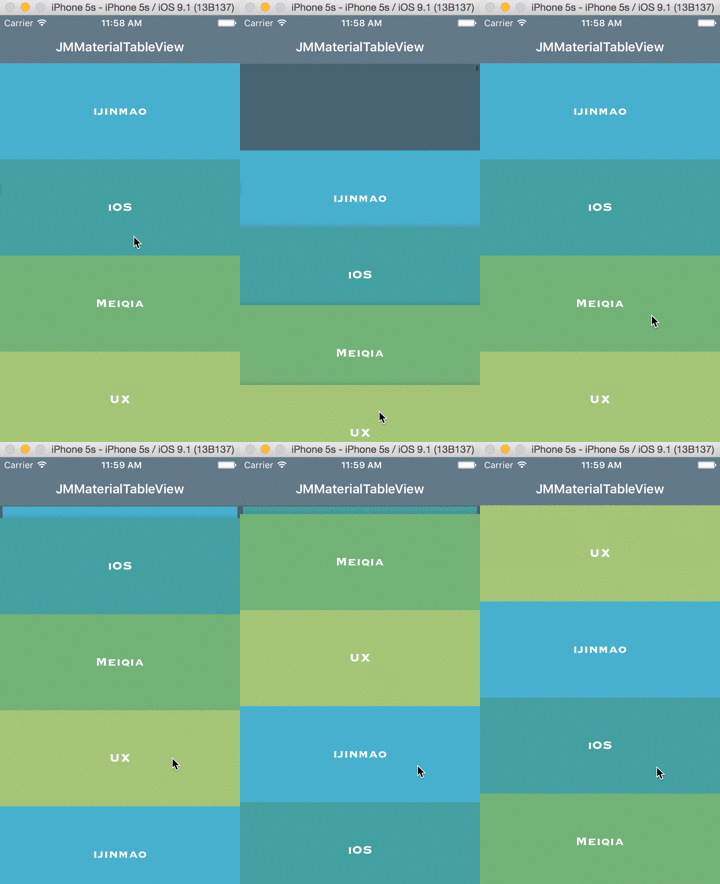
You can build a card table view like this:
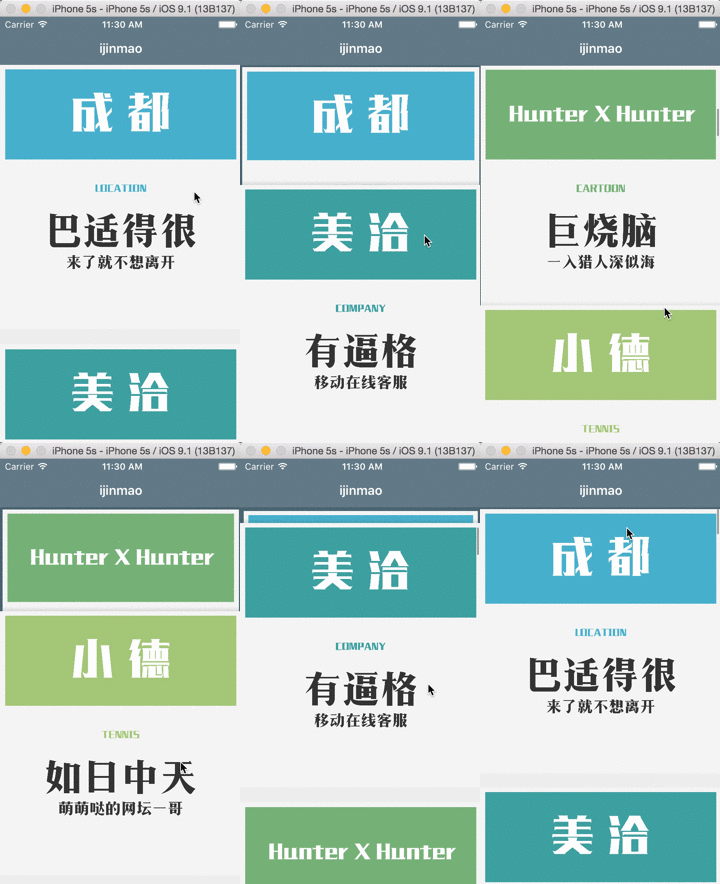
Add this to your Podfile to use JMMaterialTableView:
pod 'JMMaterialTableView', '~> 0.1.1'
Alternatively you can directly add the JMMaterialLayout.swift and JMMaterialTableView.swift to your project.
Notice that JMMaterialTableView is actually an UICollectionView. After initialization, you can use it as a normal UICollectionView.
Initialize JMMaterialLayout and JMMaterialTableView in your viewController:
	let layout = JMMaterialLayout()
	let tableView = JMMaterialTableView(frame: frame, collectionViewLayout: layout)
Set the cell size:
tableView.cellSize = CGSizeMake(cellWidth, cellHeight)Then you can use JMMaterialTableView just as a normal UICollectionView.
JMMaterialTableView is not supported dynamic cell height yet.
I don't recommend dynamic cell height tableView to use this actually, the UX is not pretty I think.
You can customize collectionView and cell by modifying JMMaterialCell.swift and TableViewDataSource.swift in the demo.
You can customize following properties in JMMaterialTableView.swift to change the default view:
- cellSize
- isTransformEnabled
- when set false, the cell size will not reduce after scrolling
- enableAutoScroll
- when set true, the tableView will always scroll to a cell top position
- enableCellShadow
- scrollDecelerationRate
- shadowOffset
- shadowRadius
- shadowOpacity
- shadowColor
- transformCoef