Releases: avashly/unity-visualscripting-samples
Terraformer: GDC Showcase 2021 Demo


Project Details
This character ability demo features visual scripts for working with the Input System, Visual Effect Graph, Timeline, Cinemachine, Scriptable Objects, animations, physics, custom events, & UI.
Requirements
This package is made for use with the Unity 2021.1.0b11 version of the HD Render Pipeline and requires the pre-installation of the following packages via the Package Manager:
- Visual Scripting (already included, just update to Version 1.5.2)
- Input System (Version 1.0.2, select "YES" when you see the prompt to restart your project)
Setup Steps
-
Download this release to get the project's .UnityPackage file, it will be used later in this process.
-
Using the Unity Hub, create & open a new Unity 2021.1 project using the HD Render Pipeline Template.
-
Once your project is open, navigate to Window > Package Manager. Select "Unity Registry" using the Packages dropdown on the top-left of the Package Manager window, then search for and install the packages listed in the Requirements above. Close the Package Manager when you're done.
-
Navigate to Assets > Import Package > Custom Package. Select the .UnityPackage you downloaded, ensure all its files are selected in the package import window (some items may be disabled if they already exist in the HDRP template), and press Import.
-
You can now open the demo via the Project Window by navigating to Assets > Scenes and opening the "GDC21_Demo" scene. (Note: It may take a bit for the shaders to load. If your Scene / Game View is still black when they're done, entering Play Mode resolves the issue.)
Game Controls & Additional Notes
-
While in Play Mode, press SHIFT to play the intro cinematic, Q to toggle Combat/Shield Mode, E to deploy a shield, & SPACE to shoot.
-
The project's visual scripts can be found under Assets > VisualScripting > Graphs and on the scene's Canvas game object.
Supernova: Space Shooter

Project Details
Shows how to use C# scripts with the in-editor version of Visual Scripting. Contains examples for using / customizing C# functions within Visual Scripting graphs, custom unit creation, & accessing Visual Scripting events & variables in C# scripts.
Requirements
This package is made for use with the Unity 2021.1.0b11 version of the Universal Render Pipeline Template and requires the pre-installation of the following packages via the Package Manager:
- Cinemachine (Version 2.7.2)
- Visual Scripting (already included, just update to Version 1.5.2)
- Input System (Version 1.0.2, select "YES" when you see the prompt to restart your project)
Setup Steps
-
Download this release to get the project's .UnityPackage file, it will be used later in this process.
-
Using the Unity Hub, create & open a new Unity 2021.1 project using the Universal Render Pipeline Template.
-
Once your project is open, navigate to Window > Package Manager. Select "Unity Registry" using the Packages dropdown on the top-left of the Package Manager window, then search for and install the packages listed in the Requirements above.
-
Close the Package Manager when you're done and navigate to Assets > Import Package > Custom Package. Select the .UnityPackage you downloaded, ensure all its files are selected in the package import window, and press Import.
-
A new "SuperNova" folder should appear within your Assets folder. You can now open the demo via the Project Window by navigating to SuperNova > Tutorial_UVS_Programmers and opening the "CompleteScene-UVS_Programmers_Tutorial" scene.
Game Controls & Additional Notes
-
While in Play Mode, you can fly the spaceship by pressing SPACE to accelerate and using WASD to turn.
-
The project's visual scripts can be found under SuperNova > Gameplay.
-
A video walkthrough of this project is available, but know it uses an older version of Visual Scripting. Some workflows and terminology have since been updated with the in-editor version of the feature. For example,
using Ludiq; using Bolt;are now replaced byusing Unity.VisualScripting;,Branchunits are now calledIfunits, and Visual Scripting options are now updated via Edit > Project Settings.
Penny Pixel: Endless Runner
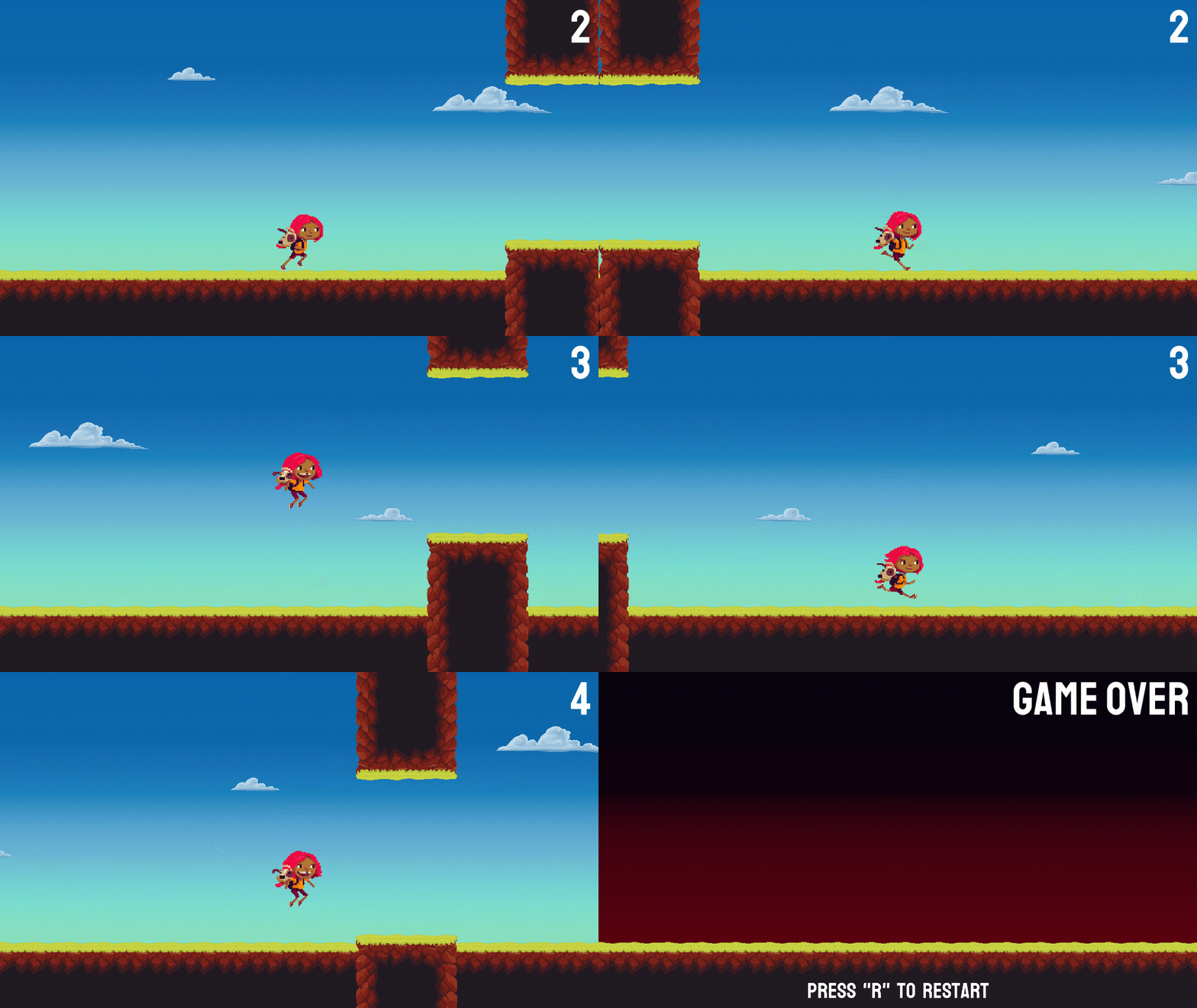
Project Details
A simple example of a 2D endless runner game. Includes visual scripts that handle basic physics, scoring, UI updates, & animations.
Requirements
This package is made for use with the Unity 2021.1.0b11 version of the 2D Template and requires the pre-installation of the following packages via the Package Manager:
- Visual Scripting (already included, just update to Version 1.5.2)
Setup Steps
-
Download this release to get the project's .UnityPackage file, it will be used later in this process.
-
Using the Unity Hub, create & open a new Unity 2021.1 project using the 2D Template.
-
Once your project is open, navigate to Window > Package Manager. Select "Unity Registry" using the Packages dropdown on the top-left of the Package Manager window, then search for and install the packages listed in the Requirements above.
-
Close the Package Manager when you're done and navigate to Assets > Import Package > Custom Package. Select the .UnityPackage you downloaded, ensure all its files are selected in the package import window, and press Import.
-
A new "EndlessRunner" folder should appear within your Assets folder. You can now open the demo via the Project Window by navigating to EndlessRunner > Scenes and opening the "EndlessRunner" scene.
Game Controls & Additional Notes
-
While in Play Mode, you can press SPACE to jump and R to restart the level.
-
The project's visual scripts can be found under Assets > EndlessRunner > Macros. There are also visual scripts on the "Game Manager" game object.
-
A video walkthrough of this project will be added to YouTube towards the end of March 2021. In the meantime, you can reference this older video of the demo which uses an earlier version of Visual Scripting. Some workflows and terminology have since been updated with the in-editor version of the feature. For example,
using Ludiq; using Bolt;are now replaced byusing Unity.VisualScripting;,Branchunits are now calledIfunits, and Visual Scripting options are now updated via Edit > Project Settings.