

A self-hostable VRChat Group management utility with Discord integration.
Scarlet is self-hosted, meaning you have complete control of your group's data.
There is no third party with access to your VRChat or Discord credentials or other sensitive information.
Since there is no automatic synchronization of data between groups running Scarlet, you don't have to worry about other groups seeing who your group has moderated or what groups you are tracking.
-
create-or-update-moderation-tag <value:string> <label:string?> <description:string?>
Adds or updates a custom moderation tag (max of 25).
Example:/create-or-update-moderation-tag "trolling" "Trolling" "Provocative or mocking behavior intended to antagonize someone" -
delete-moderation-tag <value:string>
Removes a custom moderation tag (max of 25).
Example:/delete-moderation-tag "trolling" -
watched-user
Configures watched users.
Example:/watched-user add-tag "usr_00000000-0000-0000-0000-000000000000" "inappropriate_behaviour" -
watched-group
Configures watched groups.
Example:/watched-group add-tag "grp_00000000-0000-0000-0000-000000000000" "trolling" -
watched-avatar
Configures watched avatars.
Example:/watched-avatar add-tag "avtr_00000000-0000-0000-0000-000000000000" "missing_content_tags" -
vrchat-user-ban <vrchat-user:string>
Ban a specific VRChat user.
Example:/vrchat-user-ban "usr_00000000-0000-0000-0000-000000000000" -
vrchat-user-ban-multi
Ban several VRChat users.
Example:/vrchat-user-ban-multi -
vrchat-user-unban <vrchat-user:string>
Unban a specific VRChat user.
Example:/vrchat-user-unban "usr_00000000-0000-0000-0000-000000000000" -
vrchat-user-unban-multi
Unban several VRChat users.
Example:/vrchat-user-unban-multi -
vrchat-user-info <vrchat-user:string>
Lists internal and audit information for a specific VRChat user.
Example:/vrchat-user-info "usr_00000000-0000-0000-0000-000000000000" -
discord-user-info <discord-user:user>
Lists internal information for a specific Discord user.
Example:/discord-user-info <@123456789123456789> -
submit-evidence <evidence-submission:attachment> <evidence-submission-2:attachment?> ...
Submit attachments for evidence.
Example:/submit-evidence <(attached file)>
-
query-target-history <vrchat-user:string> <days-back:int?>
Queries audit events targeting a specific VRChat user.
Example:/query-target-history "usr_00000000-0000-0000-0000-000000000000" "14" -
query-actor-history <vrchat-user:string> <days-back:int?>
Queries audit events performed by a specific VRChat user.
Example:/query-actor-history "usr_00000000-0000-0000-0000-000000000000" "14" -
set-audit-channel <audit-event-type:string> <discord-channel:channel?>
Sets a given text channel as the channel certain audit event types use.
Example:/set-audit-channel "group.instance.kick" <#log-instance-kicks> -
set-audit-aux-webhooks <audit-event-type:string>
Sets the given webhooks as the webhooks certain audit event types use.
Example:/set-audit-aux-webhooks "group.instance.kick" -
set-audit-ex-channel <audit-ex-event-type:string> <discord-channel:channel?>
Sets a given text channel as the channel certain extended event types use.
Example:/set-audit-ex-channel "groupex.instance.vtk" <#log-instance-kicks> -
set-audit-secret-channel <audit-event-type:string> <discord-channel:channel?>
Sets a given text channel as the secret channel certain audit event types use.
Example:/set-audit-secret-channel "group.instance.kick" <#log-instance-kicks> -
set-audit-ex-secret-channel <audit-ex-event-type:string> <discord-channel:channel?>
Sets a given text channel as the secret channel certain extended event types use.
Example:/set-audit-ex-secret-channel "groupex.instance.vtk" <#log-instance-kicks> -
moderation-summary <hours-back:int?>
Generates a summary of moderation actions.
Example:/moderation-summary "48" -
outstanding-moderation <hours-back:int?>
Generates a list of outstanding moderation actions.
Example:/outstanding-moderation "48"
-
set-voice-channel <discord-channel:channel?>
Sets a given voice channel as the channel in which to announce TTS messages.
Example:/set-voice-channel <#staff-in-instance> -
set-tts-voice <voice-name:string>
Sets the voice in which to announce TTS messages.
Example:/set-tts-voice "Microsoft David Desktop" -
scarlet-permission <scarlet-permission:string> <discord-role:role?>
Sets a given Scarlet-specific permission to be associated with certain Discord roles.
Example:/scarlet-permission add-to-role "event.set_tags" <@123456789123456789> -
config-info
Shows information about the current configuration.
Example:/config-info -
config-set
Configures miscellaneous settings.
Example:/config-set mod-summary-time-of-day "-06:00"
-
vrchat-search <world|user|group|avatar> <search-query:string>
Search for VRChat content.
Example:/vrchat-search user "Vinyarion" -
export-log <file-name:string?>
Exports a Scarlet log file as an attachment.
Example:/export-log -
server-restart
Restarts the Scarlet server application.
Example:/server-restart -
vrchat-animated-emoji
Generates a VRChat animated emoji spritesheet from a gif.
Example:/vrchat-animated-emoji from-url "https://tenor.com/view/rat-spin-gif-10300642414513246571"
exit,halt,quit,stop
Shuts down the application.logout
Logs out of the VRChat account and shuts down the application.explore
Browses to the folder Scarlet uses to store data.tts <message...>
Queues a TTS message to be read in the Discord Voice channel, if connected.link <vrcUserId> <discordUserSnowflake>
Associates a VRChat account with a Discord account.importgroups <file|url...>
Imports a legacy CSV list of watched groups from a file or url.importgroupsjson <file|url...>
Imports a JSON list of watched groups from a file or url.
Scarlet supports sending cli commands via named pipes.
Windows: \\.\pipe\ScarletIPC-grp_00000000-0000-0000-0000-000000000000
Everything else (Unix-like): /tmp/ScarletIPC-grp_00000000-0000-0000-0000-000000000000.sock
function Send-ScarletIPC
{
    param
    (
    [String]$GroupID,
    [String]$Message
    )
    $request = [System.Text.Encoding]::UTF8.GetBytes($Message);
    $stream = New-Object -TypeName System.IO.Pipes.NamedPipeClientStream -ArgumentList '.',"ScarletIPC-$GroupID",([System.IO.Pipes.PipeDirection]::Out),([System.IO.Pipes.PipeOptions]::None),([System.Security.Principal.TokenImpersonationLevel]::Impersonation)
    $stream.Connect(1000);
    $stream.Write($request, 0, $request.Length);
    $stream.Dispose();
}

Send-ScarletIPC -GroupID 'grp_00000000-0000-0000-0000-000000000000' -Message 'stop'Scarlet links to the official VRChat website whenever possible, including for user profiles, group posts, instances, and much more.
Scarlet can generate a link that will autopopulate the fields of the VRChat Help Desk report form based on custom tags assigned to moderation events, streamlining the reporting process and reducing mistakes from human error.
Extended audit events (Instance Inactive, Staff Join, Staff Leave, Vote-to-Kick Initiated) are logged with the Discord command set-audit-ex-channel.
Some of these require that a VRChat Client in a group instance must be running on the same machine in order for them to be logged in Discord channels.
This limitation exists because Scarlet reads the VRChat client log file as it gets updated with information.
At the moment, these events are not of the same degree as the canonical group audit events, as they do not have an , but similar functionality may hopefully be added to VRChat's first-party API in the future.
Actors are the users that initiated or performed an event, like a group staff member.
Targets are the users that had an event performed on them, like the user a group staff member kicks from an instance.
For some events, the target may not be a user, like for when a group instance is created.
You will need:
- A VRChat group you (or a dedicated bot account) have permissions for.
- A Discord server (guild) in which you have permissions.
- A Discord bot account (application).
- A Windows PC with Java 8 installed.
If you wish to not install Java 8 for all users on the PC, if you would like to have several different Java installations, or if you would otherwise prefer to keep the Java 8 installation to Scarlet only, see the instructions further below.
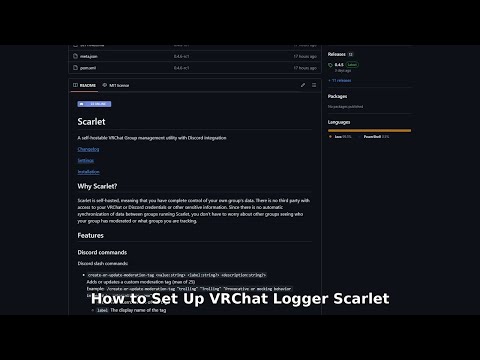
Thanks to @KozyBlake for making this video tutorial:
It is recommended that you create a bot account dedicated specifically for running Scarlet.
Create a new application via the Discord developer dashboard: https://discord.com/developers/applications
Scarlet requires some permissions above the bare defaults:
- In the
Installationtab for your app:- Scarlet only supports installation for servers.
Ensure that only theGuild Installbox is checked in theInstallation Contextsarea.

- In the
Guild Installpart of theDefault Install Settingsarea:- Add the
botscope. - Add the
Attach Files,Create Polls,Create Public Threads,Embed Links,Manage Webhooks,Read Message History,Send Messages,Send Messages in Threads,Speak, andView Channelspermissions.

- Add the
- Scarlet only supports installation for servers.
- In the
Bottab:- Enable the
Server MembersandMessage Contentintent in thePrivileged Gateway Intentsarea.

- Enable the
- Invite the bot to your server.
- In the
Installationtab for your app, select theNoneoption for theInstall Linkarea.


The VRChat account that Scarlet will use must have at least these permissions:
Manage Group Member DataView Audit logView All Members
At the moment, Scarlet does not enforce any moderation action against users.
All such actions (e.g., kicking or banning a user) must be performed manually, but Scarlet provides some convenience methods like Discord commands and buttons.
- Download the latest release (
zipis recommended): https://github.com/SybylineNetwork/Scarlet/releases/latest - Copy or extract the files into the directory of your choosing.
- If you have Java 8 installed to the system PATH, skip this step.
- Download and extract a Java 8 JDK, such as this one from Adoptium.
- Create (or overwrite) the file
scarlet.home.javanext torun.bat. - Copy-paste etc. the root path of the JDK to the first line of
scarlet.home.javaand save the file.
- If you want Scarlet to store data in a specific folder:
- Create (or overwrite) the file
scarlet.homenext torun.bat. - Copy-paste etc. path of the desired directory to the first line of
scarlet.homeand save the file.
- Create (or overwrite) the file
- Run the
run.bat.