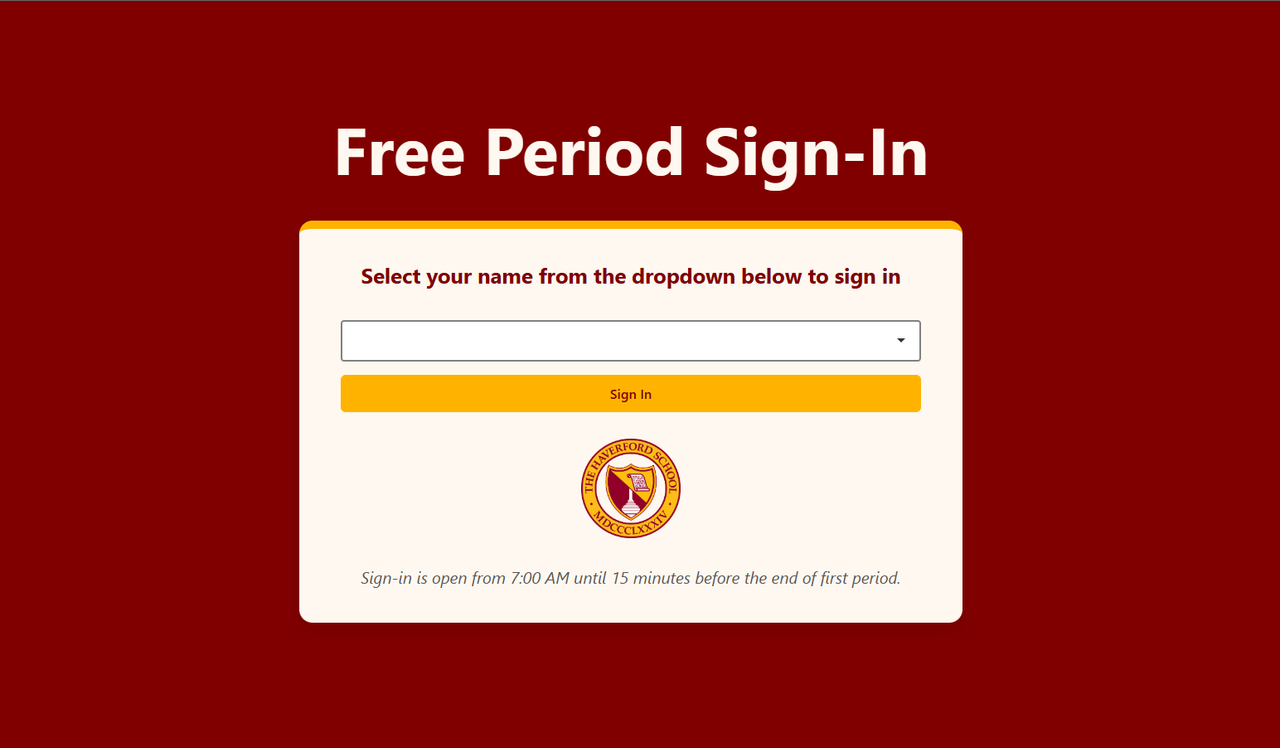
This Flask-based web application automates the process of checking in students who have their first-period free. It replaces the manual task of teachers taking attendance, ensuring a more efficient, streamlined, and reliable method of tracking student arrivals. The system sends automatic reminders, generates reports, and emails the administration for students who do not check in on time. All code is hosted on PythonAnywhere.
- How It Works
- Why It Was Created
- Features
- Installation & Setup (local)
- Installation & Setup (hosted)
- Maintaining for Future Years
This application allows students with free first periods to check themselves in by entering their information into a simple, user-friendly UI. Here's the flow:
- Check-In Window: Students can check in between the time school starts and 9:30 AM on weekdays (10:00 AM on Wednesdays).
- Automatic Reminders: 15 minutes before the check-in window closes, the system sends reminder emails to students who haven’t checked in yet.
- Reporting: Once the window closes, the system generates a list of students who have not signed in and automatically emails this list to the administration and the grade deans.
- Check-Outs: Seniors who leave campus throughout the day can check-out and check back in before 3:15 PM.
- Logging: All student check-ins and reports are logged and emailed for administrative review. The UI is designed to be simple and efficient, and the app is optimized for use on an iPad stationed at a central location, allowing students to sign in easily.
Problem: In my school, students have a flexible schedule, such as a free first-period block. Manually keeping track of when students arrive is a complicated and inefficient process. Before this application, teachers had to physically sit at a desk and check students in, taking valuable time away from other duties.
Solution: This application automates the check-in process, freeing up teachers and ensuring no student is missed. It guarantees that:
- Students are reminded to check in,
- Administration and deans receive accurate reports of any absentees,
- The process is reliable, efficient, and scalable for future years.
The program was designed with simplicity in mind, making it intuitive for students and easy for school staff to adjust as needed.
- Student Self-Check-In: Simple interface for students to check themselves in.
- Reminder System: Automatic emails to students who haven't checked in.
- Automatic Reports: Emails generated for administrators and deans about tardy or absent students.
- Scheduled Check-In Windows: Customizable check-in windows (9:30 AM on weekdays and 10:00 AM on Wednesdays by default).
- Optimized for iPad: Clean, minimal interface designed to run seamlessly on an iPad.
- Python 3.x
- Flask
- Clone the repository:
$ git clone https://github.com/Shynee1/Student-Sign-In-Automation-System.git $ cd Student-Sign-In-Automation - Install dependencies:
$ pip install -r requirements.txt
- Run Flask project:
$ flask run
- Connect to http://127.0.0.1:8000 in your browser to interact with the application.
- Access to haverfordsignin@gmail.com
- Access to PythonAnywhere account
- Website username and password
- Sign in to HaverfordSignIn email
- Log in to PythonAnywhere
- Add necessary files from local computer
- Navigate to 'Web' tab and enable WebApp
- Connect to https://haverfordsignin.pythonanywhere.com/ in your browser to interact with the application.
For this program to succeed in the future, the list of students with a first-period free must be updated every new school year. Other settings, such as the school year start date, will also need to be changed. Most settings are located in the settings.json file of the root directory. Below are the instructions that should be followed at the start of every new school year.
- Clone the repository following the steps in Installation & Setup (local)
- Adjust year-specific settings in
settings.json(use the academic calendar for holidays) - Email Ms. Skidmore to obtain a PDF of students and their free periods
- Copy PDF data into a Google or text document (ensure formatting transfers properly)
- Save data as a text document named
student.txtindatafolder - Run
create_student_csv.pyand ensure thatstudent_data.csvis created - Log in to PythonAnywhere following Installation & Setup (hosted)
- Navigate to
filestab and replace all files from your computer - Navigate to
webtab and reload the website
Remember to periodically extend expiry of PythonAnywhere task and website!