A lightweight, high-performance crosshair overlay designed for competitive gaming



LightCrosshair is a professional-grade crosshair and telemetry overlay application built for competitive gaming. It provides pixel-precise rendering, process-aware display color control, and a modern profile workflow with minimal system impact.
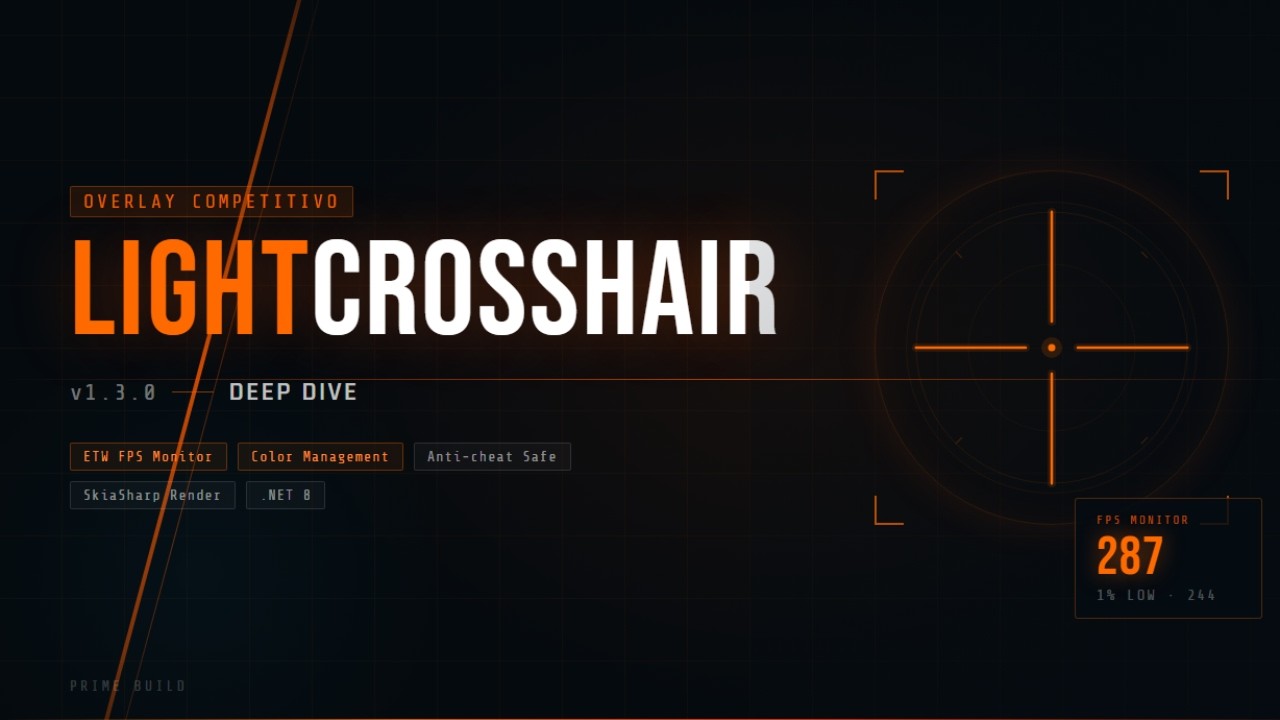
⬆️ Watch demo video on YouTube
v1.3.0: Portable standalone release, improved shutdown stability, fixed visibility-toggle FPS tracking regressions, refined process-targeted display color automation, and updated default hotkeys.
🎨 Advanced Customization
- Custom Crosshair Builder: Full control over shape, size, thickness, gap, edge, and inner layers
- Integrated FPS Overlay: Optional on-screen FPS, frametime graph, 1% lows, and source status (ETW/RTSS)
- Process-Aware Display Color Management: Per-profile gamma/contrast/brightness/vibrance that auto-applies when the target game process is in foreground
- Modern Profile Workflow: Immutable default profile, up to 10 profile slots, working-state editing, and save-current-to-selected behavior
- Unified Settings Experience: All customization is centralized in the modern Settings Window
🚀 Performance Optimized
- Low CPU Footprint: Designed for minimal overhead during gameplay sessions
- Cached Rendering Path: SkiaSharp primary renderer with automatic GDI fallback and config-driven redraws
- Safe FPS Counter: Uses ETW/PresentMon for anti-cheat safe telemetry (no in-game hooking/injection)
- Independent Flip Mode: Run the crosshair and FPS overlay in Independent Flip for an ultra-low latency setup. Note: Requires Optimizations for windowed games enabled in Windows 11 settings and MPO (Multi-Plane Overlay) active (Windows default).
🎮 Gaming Features
- Pixel-Perfect Centering: Mathematically precise positioning on all displays
- Screen Recording Detection: Auto-hide during streaming/recording
- Multi-Monitor Support: Works correctly on all display configurations
- DPI Awareness: Scales properly on high-DPI displays
🔧 User Experience
- Modern Settings Window: Dedicated settings UI for all crosshair controls, profiles, and hotkeys
- Minimal Tray Menu: Right-click tray menu is intentionally slimmed down to About and Exit
- System Tray Integration: Unobtrusive background operation
- Profile Management: Save and switch between multiple configurations
- Atomic Cloud-Ready Saves: Configuration files safely stored in
%AppData%using atomic writes to prevent corruption
- Download the latest
LightCrosshair.exefrom the Releases page - Place the executable in your preferred directory
- Run
LightCrosshair.exe— no installation required and no external runtime setup for the portable release package - Configure your crosshair from the Settings Window (
Alt + Lby default, or left-click tray icon) - (Optional) Use
uninstall.batfrom the release folder to remove local app data and startup registry traces
# Clone the repository
git clone https://github.com/PrimeBuild-pc/LightCrosshair.git
cd LightCrosshair

# Build the application
dotnet build LightCrosshair.sln --configuration Release


dotnet publish LightCrosshair/LightCrosshair.csproj --configuration Release --runtime win-x64 --self-contained true /p:PublishSingleFile=true /p:IncludeNativeLibrariesForSelfExtract=trueImportant: For the overlay to be visible in games, use Borderless Windowed mode. In Exclusive Fullscreen, the overlay may not be visible.
Getting Started
- Launch the application — on first run, the default profile appears centered on screen and the app starts in the system tray
- Open Settings Window with
Alt + L(default) if you want full settings UI (or left click on icon tray) - Customize shape, size, colors, outline, and rendering from the Settings Window
- Set target process behavior for crosshair visibility and display color management (global or game-specific)
- Save and switch profiles directly in Settings; active working state and source profile are persisted across restarts
Context Menu Navigation
- About → Shows app info, license, and project links
- Exit → Safely closes the app and tray process
- Left-click tray icon → Opens the full Settings Window for all crosshair customization
Keyboard Shortcuts
Alt + X— Toggle crosshair visibilityAlt + C— Cycle to next profile (default)Alt + V— Cycle to previous profile (default)Alt + L— Toggle settings window (default)- Right-click tray icon — Open minimal tray menu (About / Exit)
All hotkeys above are configurable in Settings.
Architecture
- Framework: .NET 8.0 (Windows) Windows Forms
- Graphics: SkiaSharp primary renderer with automatic GDI fallback
- Rendering: Cached rendering with regeneration only when config changes
- Threading: Asynchronous operations for UI responsiveness
Performance Metrics
- Startup Time: <500ms (ReadyToRun optimized)
- Memory Usage: ~50MB baseline, stable during operation
- CPU Impact: <1% during idle gaming, <2% during settings interactions
- Rendering Latency: <16ms (60+ FPS equivalent)
Compatibility
- Windows Versions: 10 (1809+), 11 (all versions)
- Display Scaling: 100%, 125%, 150%, 200% DPI scaling
- Multi-Monitor: Primary and secondary display support
- Gaming Software: Compatible with OBS, XSplit, Discord overlay
We welcome contributions from the gaming and development community! Here's how you can help:
- 🐛 Report Bugs — Submit detailed issue reports
- 💡 Suggest Features — Share ideas for new functionality
- 🔧 Submit Code — Fix bugs or implement new features
- 📖 Improve Documentation — Help make guides clearer
- 🧪 Test Builds — Try pre-release versions and provide feedback
# Prerequisites:
# - Visual Studio 2022 or VS Code
# - .NET 8.0 SDK
# - Git

git clone https://github.com/PrimeBuild-pc/LightCrosshair.git
cd LightCrosshair
dotnet restore
dotnet build
Coding Standards
- Follow C# naming conventions
- Add XML documentation for public methods
- Include unit tests for new features
- Maintain <1% performance impact
- Test on multiple Windows versions
Pull Request Process
- Fork the repository
- Create a feature branch (
git checkout -b feature/amazing-feature) - Commit your changes (
git commit -m 'Add amazing feature') - Push to the branch (
git push origin feature/amazing-feature) - Open a Pull Request with a detailed description
This project is licensed under the MIT License — see the LICENSE file for details.
| Permitted | Restricted |
|---|---|
| ✅ Commercial use | ❌ Liability |
| ✅ Modification | ❌ Trademark use |
| ✅ Distribution | |
| ✅ Private use |
- Gaming Community — For feedback and feature requests
- Open Source Contributors — For code improvements and bug fixes
- Beta Testers — For helping identify and resolve issues
- .NET Team — For the excellent framework and tools
- Issues: GitHub Issues — Bug reports and feature requests
- Discussions: GitHub Discussions — Community support
- Documentation: Wiki — Detailed guides and tutorials
Made with ❤️ for the gaming community

⭐ Star this repo • 🐛 Report Bug • 💡 Request Feature • 🤝 Contribute