Event-driven API for detecting code smells using metrics analysis and a Domain Specific Language (DSL).
Code smells are internal structures in source code that violate coding conventions and design principles, harming the internal quality of evolving systems and indicating issues of architectural and design degradation.
They typically arise when developers make hurried or poorly planned modifications to implement features or fix problems.
Traditional detection approaches focus mainly on static analysis and predefined technical metrics. However, such approaches often ignore important aspects of the development context, such as team characteristics, project constraints, and the stage of software evolution.
Unlike traditional detection approaches, SmellHunter integrates technical metrics alongside development context.
The tool supports asynchronous analyses, reducing interference with the developer’s workflow while enabling scalable and incremental processing.
This approach aims to reduce false positives and helps in refactoring decisions aligned with real-world development contexts.
 The system uses an event bus pattern with the following event types:
-
ANALYSIS_REQUESTED -
VALIDATION_COMPLETED/VALIDATION_FAILED -
ANALYSIS_COMPLETED -
PERSISTENCE_COMPLETED
flowchart LR

A[Eclipse Plugin / Client] --> B[POST /analyze]

B --> C[API Gateway]

C --> D[Event: ANALYSIS_REQUESTED]

D --> E[Validation Service]

E --> F{Validation Result}

F -->|Success| G[Event: VALIDATION_COMPLETED]
F -->|Failure| X[Event: VALIDATION_FAILED]

G --> H[Interpreter Engine]

H --> I[Event: ANALYSIS_COMPLETED]

I --> J[Persistence Worker]

J --> K[(Smell Storage)]

K --> L[GET /status]
K --> M[GET /smells]
Initiates asynchronous smell analysis.
Request Format: multipart/form-data or application/json
| Field | Type | Required | Description |
|---|---|---|---|
| user_id | string | Yes | User identifier |
| smell_dsl | file | Yes | .smelldsl file with smell definitions |
| metrics | file | Yes | CSV/JSON file with metric values |
| thresholds | file | Yes | CSV/JSON file with threshold values |
| Field | Type | Required | Description |
|---|---|---|---|
| loc_id | string | Yes | Location identifier |
| project_id | string | Yes | Project identifier |
| org_id | string | Yes | Company identifier |
Metrica,Valor
GodClass.ATFD,12
GodClass.TCC,4
LongMethod.LOC,300
Metrica,Valor
GodClass.ATFD-LIMIT,10
GodClass.TCC-LIMIT,5
LongMethod.LOC-LIMIT,100
smelltype DesignSmell;
smell GodClass extends DesignSmell {
    feature ATFD with threshold 4, 10;
    feature TCC with threshold 3, 5;
    treatment "Refactor into smaller classes";
}
rule GodClassRule when (GodClass.ATFD > GodClass.ATFD-LIMIT) then "Flag";
{
  "user_id": 3,
  "smell_dsl": "smelltype DesignSmell; smell GodClass extends...",
  "metrics": {
    "GodClass.ATFD": 12,
    "GodClass.TCC": 4
  },
  "thresholds": {
    "GodClass.ATFD-LIMIT": 10,
    "GodClass.TCC-LIMIT": 5
  },
  "request_data": {
    "org_id": 2,
    "loc_id": 3,
    "project_id": 1,
    "file_path": "/src/Main.java",
    "language": "java",
    "branch": "main",
    "commit_sha": "abc123"
  }
}
{
  "status": "accepted",
  "ctx_id": "550e8400-e29b-41d4-a716-446655440000",
  "smell_id": "6ba7b810-9dad-11d1-80b4-00c04fd430c8"
}
Check analysis status.
{
  "status": "processing"
}
{
  "status": "ok",
  "history": [
    {
      "cod_ctx": "550e8400-e29b-41d4-a716-446655440000",
      "status": "INTERPRETED",
      "details": "{\"result\": {\"is_smell\": true, \"smells_detected\": [\"GodClass\"]}}"
    }
  ]
}
Retrieve persisted smell data.
{
  "id": "6ba7b810-9dad-11d1-80b4-00c04fd430c8",
  "ctx_id": "550e8400-e29b-41d4-a716-446655440000",
  "timestamp_utc": "2024-01-01T12:00:00.000Z",
  "user_id": "123",
  "org_id": "456",
  "loc_id": "789",
  "project_id": "101",
  "type": "GodClass",
  "smell_type": "DesignSmell",
  "is_smell": true,
  "rule": {"GodClassRule": true},
  "file_path": "/src/Main.java",
  "language": "java",
  "branch": "main",
  "commit_sha": "abc123",
  "treatment": "Refactor into smaller classes",
  "metrics": {
    "GodClass.ATFD": 12,
    "GodClass.TCC": 4
  }
}
-
Eclipse Plugin Client →
POST /analyze -
API generates
ctx_idandsmell_id -
Event
ANALYSIS__REQUESTEDpublished -
ValidationObserver validates metrics and thresholds
-
Event
VALIDATION_COMPLETEDpublished -
InterpreterWorker executes
run_interpretation() -
Event
ANALYSIS_COMPLETEDpublished -
PersistenceWorker saves to local CSV
-
Event
PERSISTENCE_COMPLETEDpublished -
SheetsPersistenceObserver saves to Google Sheets
-
StatusWorker stores result for status queries
-
Client polls
GET /status/<ctx_id>andGET /smells/<smell_id>
| Code | Description |
|---|---|
| 202 | Analysis accepted (async processing) |
| 400 | Bad request (invalid data) |
| 404 | Resource not found |
| 500 | Internal server error |
| Observer | Event | Responsibility |
|---|---|---|
| ValidationObserver | ANALYSIS_REQUESTED | Starts the pipeline |
| InterpreterWorker | VALIDATION_COMPLETED | Executes interpretation |
| PersistenceWorker | ANALYSIS_COMPLETED | Saves to CSV |
| SheetsPersistenceObserver | PERSISTENCE_COMPLETED | Saves to Google Sheets |
| StatusWorker | ANALYSIS_COMPLETED | Stores for status queries |
| LogObserver | ANALYSIS_COMPLETED | Saves log file |
| CsvSheetsObserver | ANALYSIS_COMPLETED | Exports to CSV |
| EventBusLoggerObserver | All | Logs context events |
python --version # Verify version
python -m venv venv
# Windows:
venv\Scripts\activate
# Linux/Mac:
source venv/bin/activate
-
Go to Google Cloud Console
-
Create new project or select existing
-
Enable Google Sheets API
-
Navigate to IAM & Admin → Service Accounts
-
Click Create Service Account
-
Name:
(...) -
Assign role: Editor
-
Create key: JSON format
-
Download and save as
service-account.jsonin project root
-
Download the pre-configured spreadsheet:
-
Access the shared Google Drive template:
-
Click "Make a copy" to save it to your own Google Drive
-
Rename it as needed (e.g., "SmellHunter - [Your Project Name]")
-
-
Worksheet Structure (already configured):
-
Bad_Smell - Contains all detected smells with complete metadata
-
Context - Logs all context events and execution history
-
-
Share with Service Account:
-
Open your copied spreadsheet
-
Click the "Share" button in the top-right corner
-
Add your service account email (found in
service-account.json) -
Assign role: Editor
-
Uncheck "Notify people" and click Share
-
-
Get Spreadsheet ID:
-
The spreadsheet URL contains the ID:
https://docs.google.com/spreadsheets/d/``SPREADSHEET_ID_HERE``/edit -
Copy this ID and add it to your
.envfile:
-
        SPREADSHEET_ID=YOUR_SPREADSHEET_ID
        GOOGLE_APPLICATION_CREDENTIALS=app/configs/service_account.json
-
Verify Headers (already set up):
Bad_Smell worksheet headers:
id, timestamp_utc, time_zone, user_id, org_id, loc_id, project_id, type, smell_type, is_smell, rule, file_path, language, branch, commit_sha, ctx_id, treatment
Context worksheet headers:
ctx_id, user_id, org_id, loc_id, timestamp_utc, event_type
The spreadsheets are now ready to receive data from your SmellDSL Detection Service!
Create .env file in project root:
FLASK_ENV=development
FLASK_APP=interpreter_api.py
PORT=5000
SPREADSHEET_ID=your-spreadsheet-id-here
SERVICE_ACCOUNT_FILE=service-account.json
LOG_DIR=logs
smell-detect/
├── app/
│   ├── configs/
│   │   └── settings.py
│   ├── events/
│   │   ├── event_bus.py
│   │   ├── event_types.py
│   │   ├── observers.py
│   │   └── validation_service.py
│   ├── parser/
│   │   ├── grammar.py
│   │   └── metric_extractor.py
│   ├── repositories/
│   │   └── sheets_repository.py
│   ├── interpreter_api.py
│   ├── interpreter_core.py
│   └── __init__.py
├── logs/
├── service-account.json
├── .env
└── requirements.txt
#Core dependencies
flask==2.3.3
lark==1.2.2

#Google Sheets integration
google-api-python-client==2.108.0
google-auth==2.28.1
google-auth-httplib2==0.2.0
google-auth-oauthlib==1.2.0
google-oauth2==1.0.0


#Utilities
python-dotenv==1.0.0
requests==2.31.0
dataclasses==0.6  # For Python < 3.7 (optional)
typing-extensions==4.9.0

#Development tools (optional)
pytest==7.4.4
black==23.12.1
flake8==7.0.0
cd smelldetect
python -m app.interpreter_api
-
Eclipse IDE 2023-12 or later
-
JDK 21 or later
-
SWT libraries (included with Eclipse)
-
File → Import → Existing Projects into Workspace
-
Select the plugin project directory
-
Check "Search for nested projects"
-
Click Finish
-
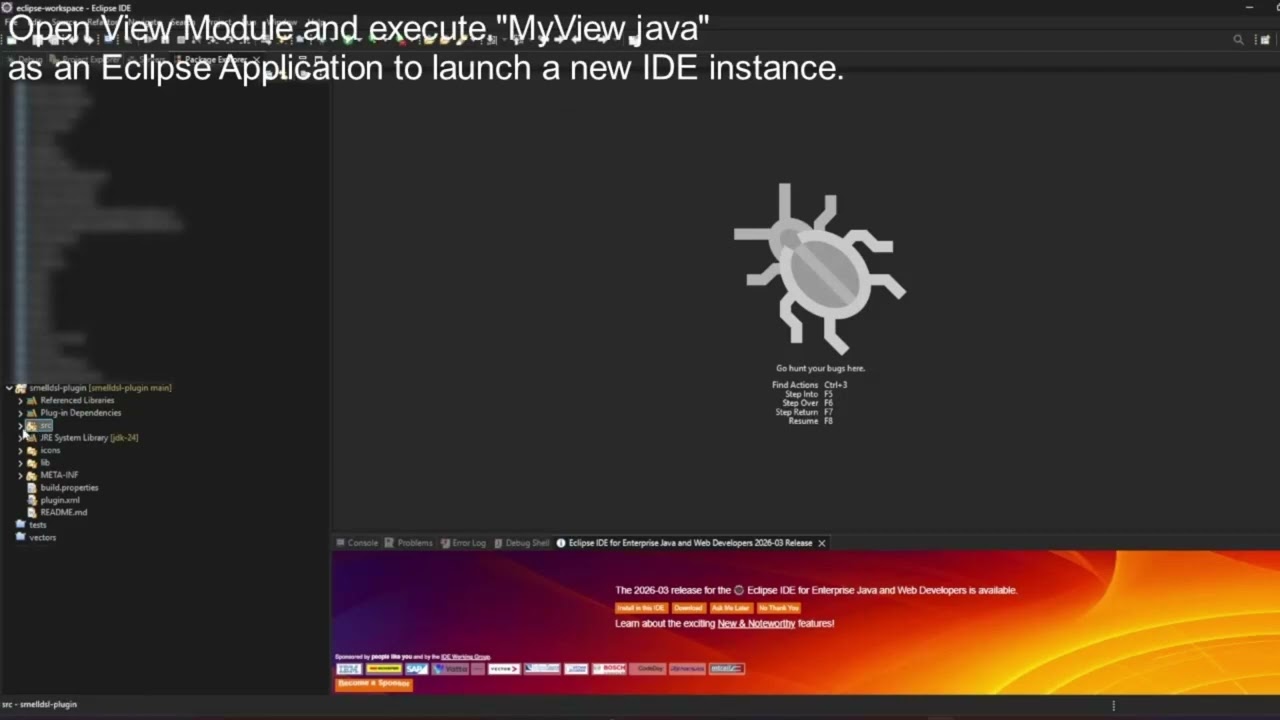
Right-click on the project → Run As → Eclipse Application
-
A new Eclipse instance will launch
-
Navigate to Window → Show View → Other...
-
In the dialog, expand the plugin category and select "MyView"
-
Click Open to display the view
SmellHunter persists detected smells and contextual execution data in Google Sheets.
These datasets can be connected to AppSheet to provide an interactive visualization layer for exploring detection results.
The dashboard allows users to inspect detected smells, navigate contextual information, and analyze detection outcomes through a structured interface.
🔗SmellHunter AppSheet Mobile View
🔗SmellHunter AppSheet Browser View
This view presents contextual information related to the execution environment where the analysis occurred.
It includes metadata such as organization identifiers, project information, location identifiers, and execution timestamps.
The goal of this view is to support contextual analysis of smell occurrences across different projects and development environments.


The Smell Details view displays the complete information related to a detected smell instance.
This includes the smell type, evaluated rule results, associated metrics, and metadata describing the analyzed artifact.
This view helps developers understand why a smell was detected and provides insights to guide refactoring decisions.


