Download RTSP for Wyze Cam Pan v3
As of October 28, 2025
Download the latest RTSP firmware for Wyze cameras. Wyze.com has removed some downloads from their forums.
Wyze Update from @WyzeDave 10/28/2025: Hey! We’ve finally got a beta app for RTSP for v3 and Pan v3. Here’s everything you need to get access: https://wyze-beta.s3.us-west-2.amazonaws.com/rtsp.html Thank you so much for your patience!
Wyze Update 04/05/2022: RTSP was considered a beta feature and we are currently assessing the path forward as the firmware versions have aged quite a bit. Wyze has removed the firmware files for these versions for now and will update the pages when plans are finalized. Please note that firmware files take a while to work on and test so you may not see an update in the near future. Wyze apologizes for the inconvenience.
- RTSP Downloads
- Compatibility Chart
- How to Install RTSP Firmware
- How to turn on RTSP
- Wyze Cam Pan v3
- ✅ Supports CamPlus
- Wyze Cam v3
- ✅ Supports CamPlus
- ✅ Supports Accessories (Spotlight, Lamp Socket, Floodlight, Garage Door Controller)
- Wyze Cam v2
⚠️ Supports CamPlus but special setup required
- Wyze Cam Pan v1
- ❌ CamPlus not available.
| RTSPS | RTSP | |
|---|---|---|
| VLC | ❌ | ✅ |
| Home Assistant | ✅ | ✅ |
| FFPlay | ✅ | ✅ |
| OBS | ✅ | ✅ |
| Scrypted | ✅ | ✅ |
- Wyze Cam Pan v3 Alpha Firmware (4.36.16.5055 October 2025)
⚠️ Requires Additional WyzeBeta App Download- iOS WyzeBeta App Download - Must open link on Safari browser
itms-services://?action=download-manifest&url=https:/wyze-beta.s3.us-west-2.amazonaws.com/manifest.plist
- After the installation is complete, you will need to go to Settings > General > Device management to manually trust the Wyze certificate.
- Android WyzeBeta Download
- iOS WyzeBeta App Download - Must open link on Safari browser
- Wyze Cam v3 Alpha Firmware (4.55.16.5055 October 2025)
⚠️ Requires Additional WyzeBeta App Download- iOS WyzeBeta App Download - Must open link on Safari browser
itms-services://?action=download-manifest&url=https:/wyze-beta.s3.us-west-2.amazonaws.com/manifest.plist- After the installation is complete, you will need to go to Settings > General > Device management to manually trust the Wyze certificate.
- Android WyzeBeta Download
- iOS WyzeBeta App Download - Must open link on Safari browser
- Wyze Cam v3 Firmware (4.61.0.1 September 2021)
- MD5 Hash: FD788FF06FD567DBB8188A94A13BA0D7
- Supports CamPlus but not recommended by Wyze
- Wyze Cam v2 Firmware (4.28.4.51 April 2023) - (Older) Wyze Cam v2 Firmware (4.28.4.49 November 2020)
- Wyze Cam Pan Firmware (4.29.4.49 March 2021)

- Download the Wyze Cam v2 RTSP file, the Wyze Cam v3 RTSP file, or the Wyze Cam Pan RTSP file. Please note that the Wyze Cam Pan firmware file is not compatible with Wyze Cam Pan v2.
- Choose which firmware to install:
- For Wyze Cam v2 and Pan, unzip the file and rename the contents to 'demo.bin'. Then transfer the files to a microSD card's root directory.
- For Wyze Cam v3, transfer the ‘demo_wcv3.bin’ file to a microSD card's root directory
- For Wyze Cam Pan v3, transfer the ‘recovery_wyzepan3.bin’ file to a microSD card's root directory
- Unplug your Wyze Cam and insert the prepared microSD card
- Hold the camera's Setup button while plugging in the USB cable and continue to hold the Setup button until the light turns solid blue 🔵 for Wyze Cam v2 and Pan or purple 🟣 for Wyze Cam v3 and Wyze Cam v3.
- Once the light is solid blue, release the Setup button and wait for 3-4 minutes. The camera will reboot, and the status light will change during this time.
- Note: The "Solid Blue" in this case is not the same as the one normally seen on the cameras. It would be lighter and yellowish on Wyze Cam v2/Wyze Cam Pan and purple on Wyze Cam v3/Wyze Cam Pan v3.
- Once this process is finished, you should see the Wyze Cam in your Home tab without going through the setup process as long as it was previously paired with your account.
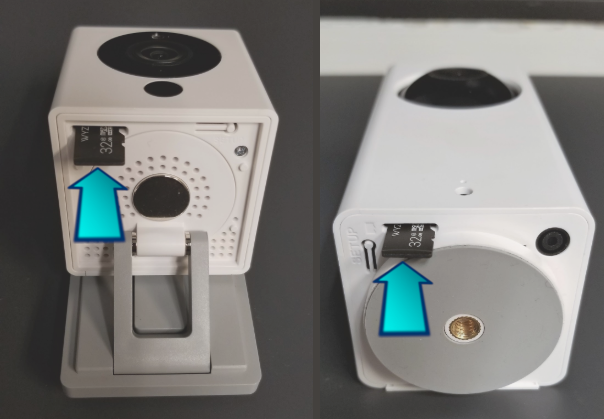
- If installing RTSP firmware didn't work, try formatting your SD card and try to install again:
- Cards 32GB and smaller should be set to FAT32.
- Cards larger than 32GB should be set to exFAT.
- How to format SD card on Windows or Mac
- Once your Wyze Cam is back online, you can access the RTSP function from the live stream (Wyze app version 2.3 or later) under Settings -> Advanced Settings -> RTSP
- The app will automatically check if the installed firmware version is RTSP compatible. If not, please repeat the installation process above.
- Next, turn on the RTSP toggle
- You'll be prompted to set up a username and password for this Wyze Cam. Both the username and password should be 4 – 10 characters without special characters (only a-z, and 0-9)
- PLEASE NOTE - This username and password is unique to just this camera. Please either use something that's easy to remember or take note of them somewhere, as these will be needed to access the camera's stream via RTSP
- Click “Generate URL”, and the RTSP URL will show on the next screen. Use this for streaming through any RTSP compatible player on the same local network as the Wyze Cam.
Note: Cam Plus is included on the Wyze Cam v3 RTSP firmware. However, there can be video lag if both functions are streaming video at the same time. We do not recommend running Cam Plus on the RTSP firmware.
- WYZE Cam RTSP
- WYZE.COM Download links

