English | Pусский
| Platform | Windows |
|---|---|
| Build status |
The utility automates the update of the RDP certificate on Windows 10 (it may work on other versions as well). Below is a description of how to configure RDP for a system behind a router, with a dynamic public IP, and a domain for access set up via no-ip.com in the format myhomehost.ddns.net.
Since several non-trivial actions are required to assign/update the certificate on desktop Windows, this program has been created.
We will generate certificates using the service https://zerossl.com
- Open the page for creating/updating the certificate https://zerossl.com/free-ssl/#crt
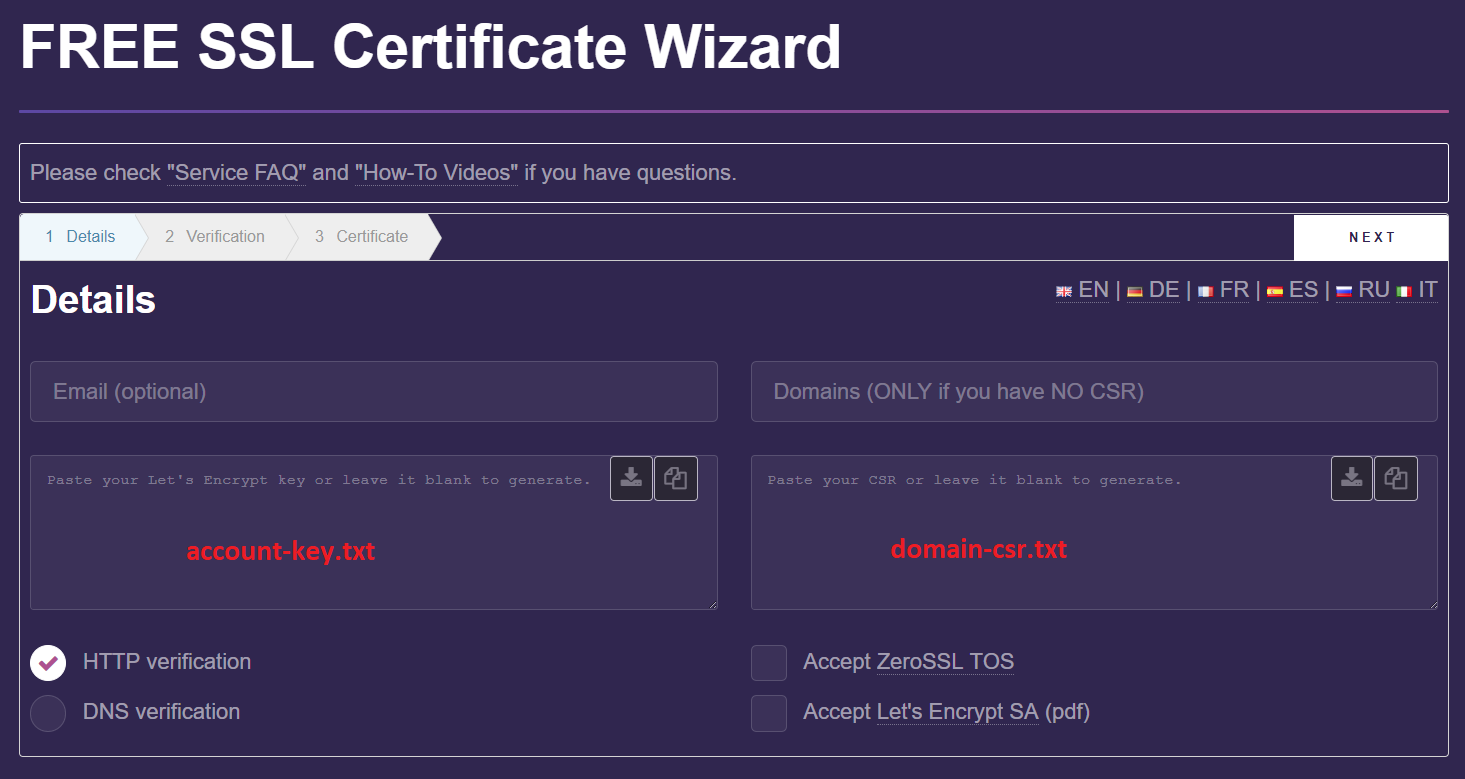
- If we are creating a new certificate, we leave the fields
account-key.txtanddomain-csr.txtempty. The filesaccount-key.txt, domain-csr.txt, myprivate_domain.keywill be generated, and in the next step, we need to save them.- The file myprivate_domain.key is used only locally to generate the pfx certificate.
- If we are renewing the certificate, we insert the contents of the files obtained during the initial certificate creation into the corresponding fields
- account-key.txt
- domain-csr.txt
- Next, we will be asked to confirm ownership of the domain.
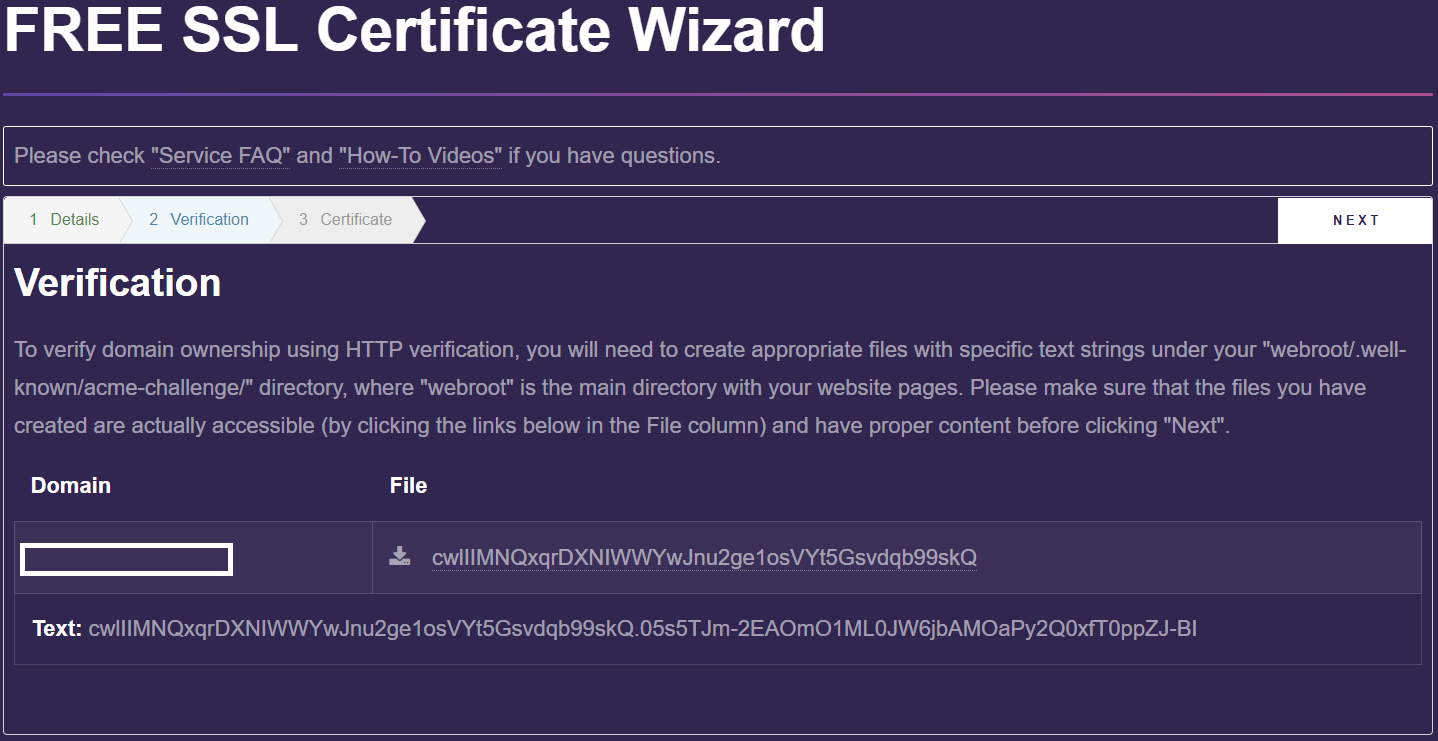
- Download the confirmation file.
- Place it in
WebServer\wwwroot\.well-known\acme-challenge\ - In the file
WebServer\Properties\launchSettings.json, specify the local IP of the system, for example,"applicationUrl": "http://192.168.1.41:5000/" - Run
WebServer\run.bat - Go to the router settings and forward port 80 to
192.168.1.{your_ip}:5000 - Check that the WebServer is running and the port is forwarded. To do this, open the link to the file at step
2 - Verification; it should display the content. - Click Next.
- After successful confirmation, you will be prompted to download and save the file
domain-crt.txt.
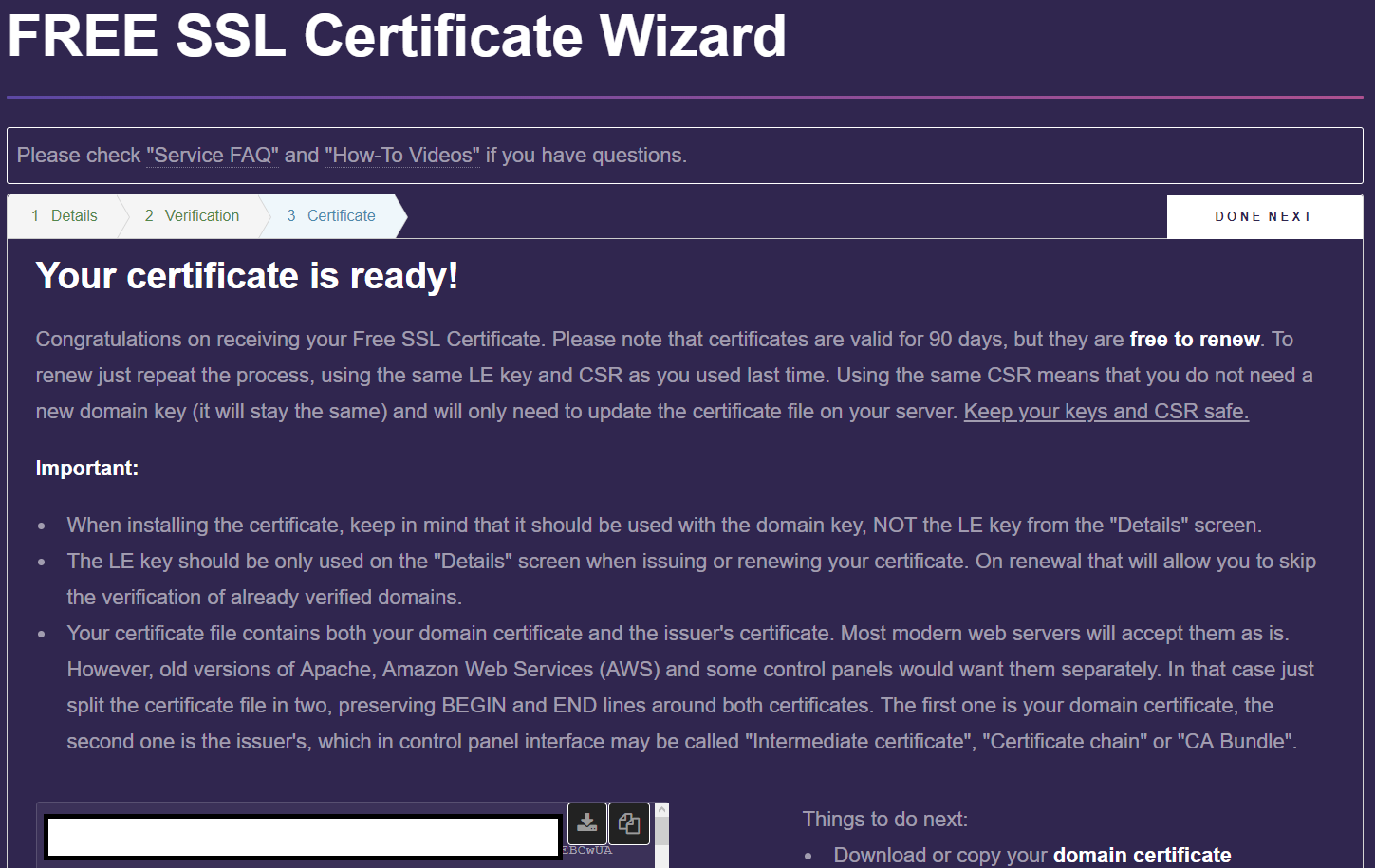
- Turn off the WebServer and remove the port forwarding.
- Run
RDPCertInstaller.exe(administrator rights are required as the system registry is modified) - Specify the following files:
- In the Key field - the file
myprivate_domain.key - In the Cert field - the file
domain-crt.txt
- In the Key field - the file
- Click Install RDP cert.
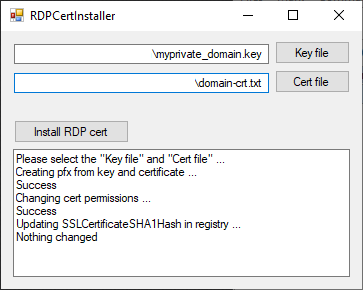
- If at the end it says Success, everything has been updated successfully.
- Try to connect via RDP - there should be an icon for a secure connection at the top with our certificate.
https://support.microsoft.com/ru-ru/help/2001849/how-to-force-remote-desktop-services-on-windows-7-to-use-a-custom-serv
http://www.sherweb.com/blog/when-given-crt-and-key-files-make-a-pfx-file/
https://alexmdv.ru/zashhita-rdp-podklyucheniya
http://macrodmin.ru/2016/03/secure-rdp/