Home
The repository containing the GameDistribution SDK for Cocos games. This allows you to display advertisements and other solutions available to games published within the GameDistribution network.
Before you can start using GameDistribution you need to register as a developer:
https://developer.gamedistribution.com/register/developer/
When you have registered as a developer you also need to register your game in the GameDistribution developer portal:
https://developer.gamedistribution.com/games
When you have registered the game head to the Upload tab and copy the Game ID:

You can integrate GameDistribution in both new games and in existing games. Please follow the instructions below depending on your situation.
Add your Game ID to the GameDistribution section of the script file:

To use the GameDistribution SDK in a cocos game you need to write some new functions to call advertisement from GameDistribution SDK.
  GDShowAd: function () {
        if (typeof gdsdk !== 'undefined' && gdsdk.showAd !== 'undefined') {
            gdsdk.showAd();
        }
    },
    GDShowRewardedAd: function () {
        if (typeof gdsdk !== 'undefined' && gdsdk.showAd !== 'undefined') {
            gdsdk.showAd('rewarded');
        }
    },
    GDShowDisplayAd: function () {
        if (typeof gdsdk !== 'undefined' && gdsdk.showAd !== 'undefined') {
            gdsdk
                .showAd(window.gdsdk.AdType.Display, { containerId: "CONTAINER_ID_TO_PUT_AD_IN" })
                .then(() => console.info('showAd(window.gdsdk.AdType.Display) resolved.'))
                .catch(error => console.info(error));
        }
    },
Once you have the functions set up you can start showing ads. The GameDistribution SDK supports Rewarded Ads, Interstitial Ads and Display Ads.
Use Rewarded Ads to give the user premium content, extra lives, in-game currency, and so on. You show a Rewarded Ad like this:

Use Interstitial Ads during screen transitions, between sessions and in other situations where there is a natural pause in game play. You show an Interstitial Ad like this:
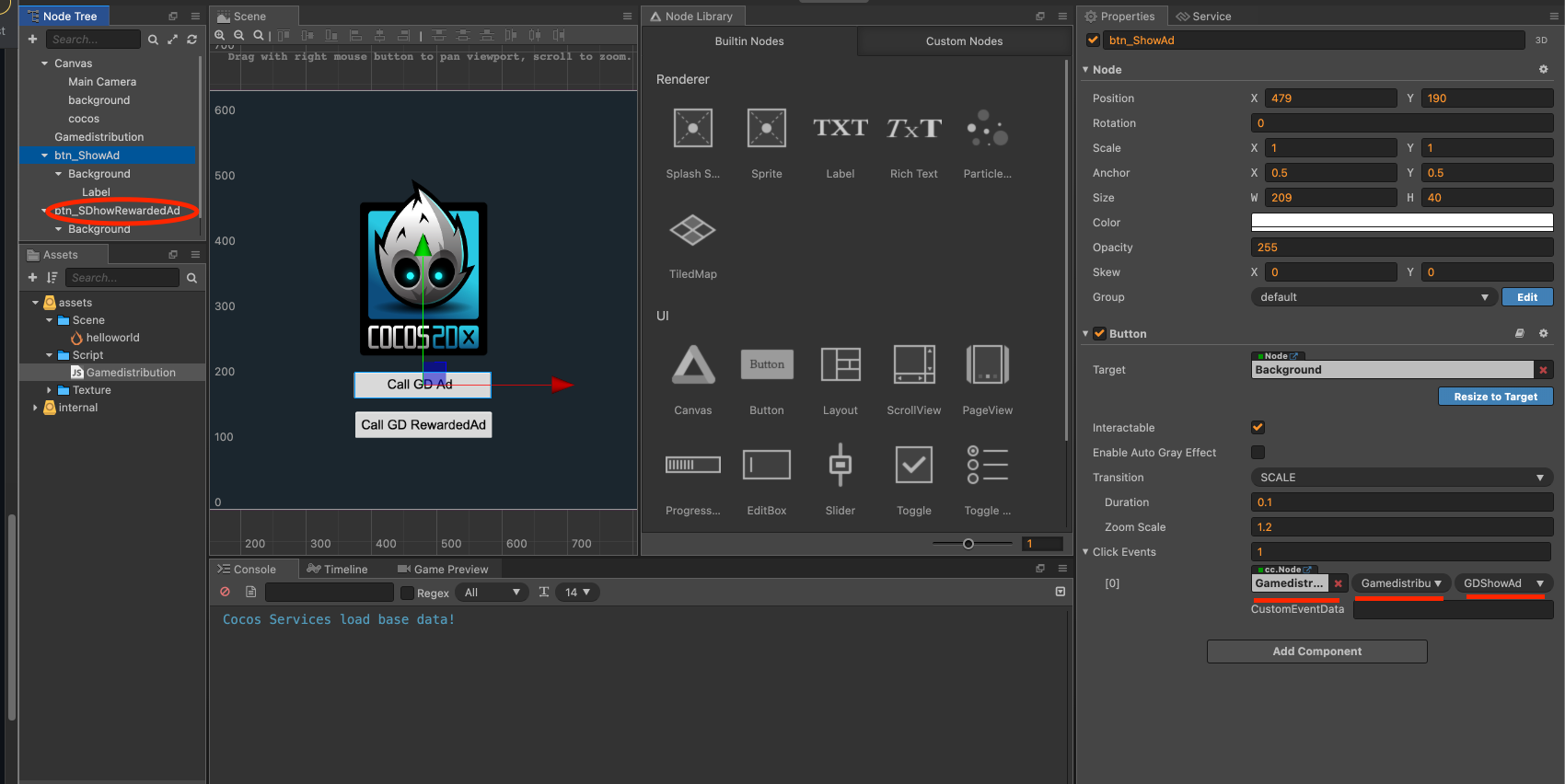
Use Display Ads (also known as a banner ad) at your discretion but make sure to not cover any of your game content. You need to manually add a <div> where the Display Ad will be shown. Example:
<!-- center and anchor to bottom of page -->
<div style="position: absolute; bottom: 0px; left: 50%;">
	<div id="canvas-ad" style="width: 728px; height:90px; margin-left: -50%;"/>
</div>
Give the <div> a size that matches one of the supported display ad sizes.
You show and hide a Display Ad like this:

To verify your SDK implementation; make sure to completely view an advertisement, while viewing your game through an iframe launched from the Upload tab of the GameDistribution developer portal page for you game.
Yoıu can find a test game and code sample here.