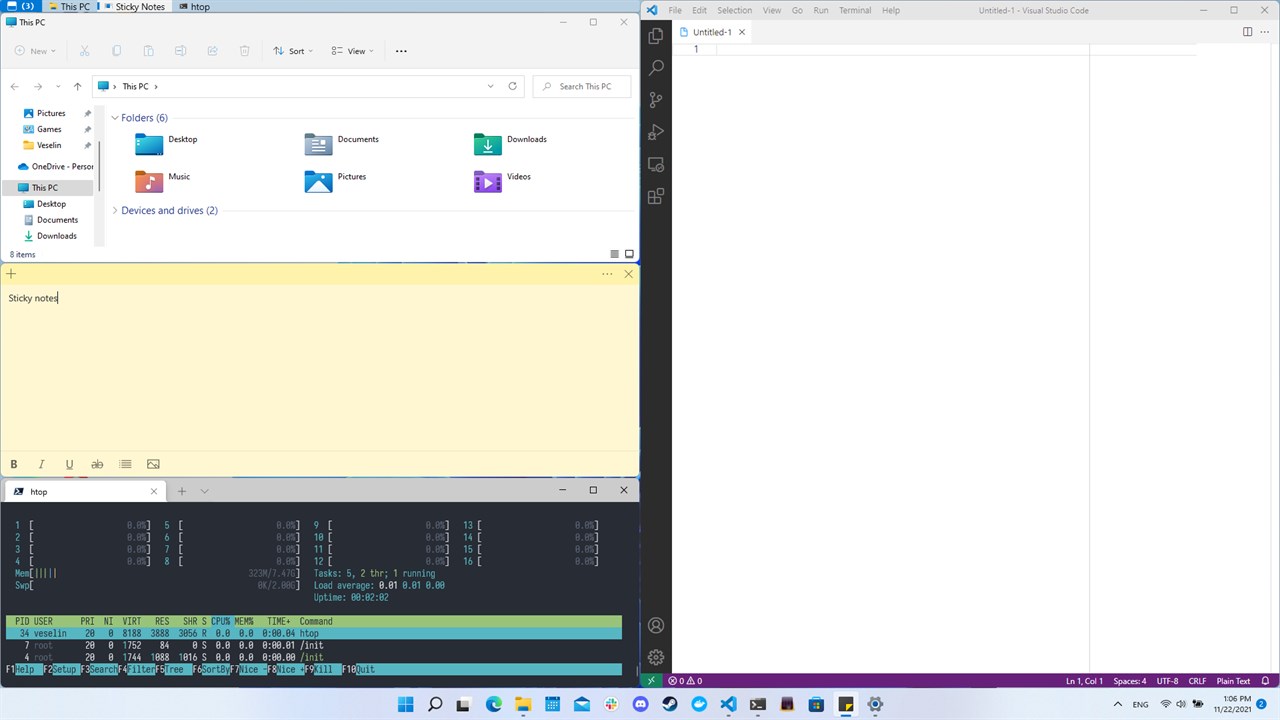
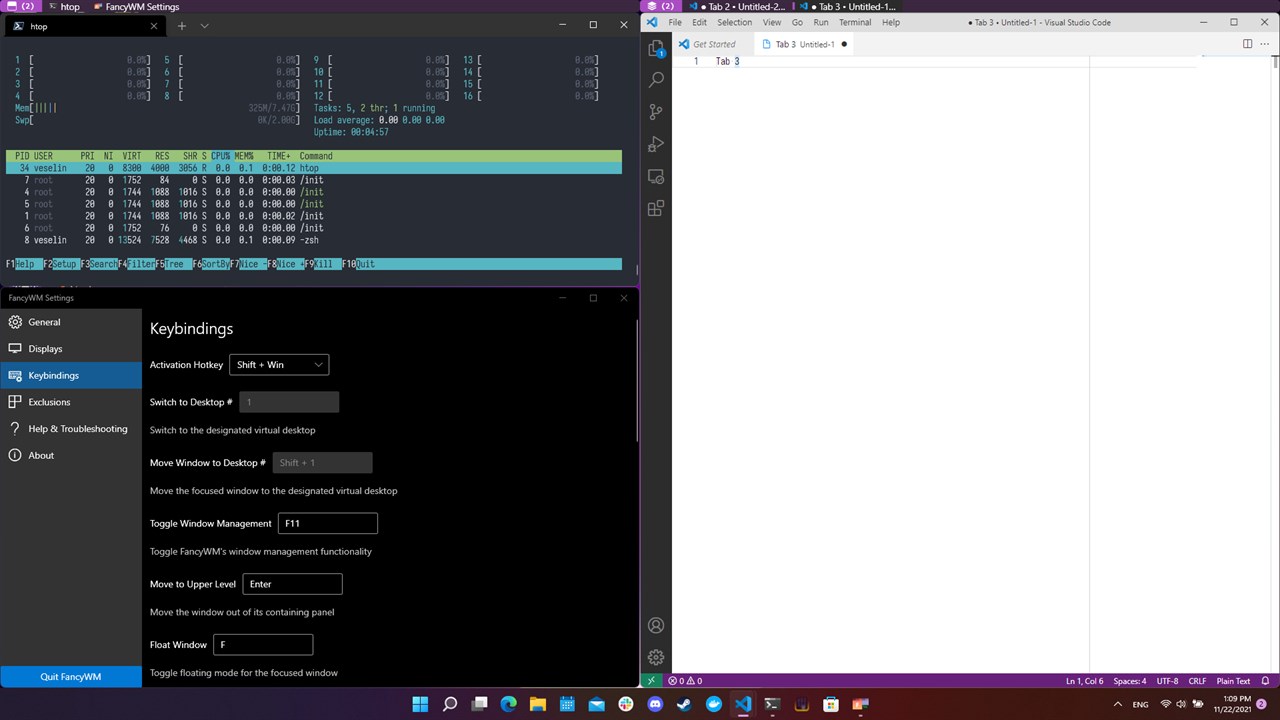
FancyWM is a dynamic tiling window manager for Windows 10/11 that brings the productivity of tiling windows to the Windows desktop - without complex configuration and without sacrificing the familiar mouse-and-keyboard interactions most users expect.

Instead of manually arranging overlapping windows, FancyWM automatically organizes your applications into vertical, horizontal and stack panels. Windows flow into the focused panel as they open, resize gracefully when siblings close, and can be rearranged with simple keyboard shortcuts or mouse drag-and-drop. The result is a clutter-free workspace where every application has a deliberate place.
Tiling fundamentally changes how you interact with a desktop. New windows stop overlapping; instead, they automatically claim their space alongside existing windows. Keyboard navigation replaces constant mousing. For developers, researchers, and power users managing multiple applications simultaneously - whether coding with reference docs, multi-tasking across projects, or orchestrating complex workflows - tiling reclaims significant time and cognitive load.
Windows offers Snap Layouts and Virtual Desktops, which are useful, but lack the control and dynamic behavior that tiling provides. FancyWM fills that gap: it's a practical entry point for users curious about tiling without abandoning the Windows ecosystem.
FancyWM organizes windows into three panel types:
These panels can be nested arbitrarily - a horizontal panel containing vertical sub-panels, with stack panels embedded inside them. Build custom layouts by combining primitives, not by editing configuration files.
Forget predefined layout templates and complex configuration. FancyWM creates layouts as you work. The available keybingins are shown after you press [⇧ Shift] + [⊞ Win].
- Open your first window - it automatically fills the workspace.
- Open a second window - FancyWM creates a horizontal split; both windows now share the space.
- Create a vertical panel with
[⇧ Shift]+[⊞ Win], then[V]- the focused window moves into a new vertical panel. - Create a stack panel with
[⇧ Shift]+[⊞ Win], then[S]- windows can now overlap as tabs. - Drag windows between panels, or embed panels into other panels, refining the layout in real-time.
FancyWM respects that Windows users value both input methods:
This balances power-user efficiency with the approachability expected on Windows.
Applications declare minimum and maximum window sizes via the Windows API (WM_GETMINMAXINFO). If an application refuses to resize smaller than its declared minimum, FancyWM respects that constraint - windows never shrink below their declared minimums. Dialogs, tooltips, and transient windows are automatically floated (removed from tiling) so they don't interfere with layouts. If a new window would cause your columns to shrink below the minimum size, that window will be automatically floated too.
The consequence: No overlapping tiles, no broken layouts - the tiler adapts to application constraints rather than forcing applications into unsuitable sizes.
FancyWM integrates with Windows' native Virtual Desktops. Jump to desktop 1, 2, or 3 with [⇧ Shift] + [⊞ Win], then [1], [2], [3], or move a window to a different desktop with [⇧ Shift] + [⊞ Win], [⇧ Shift] + [1], [2], [3]. Panel layouts can be per-monitor or global - your choice. This fits multi-project workflows: "Desktop 1 for coding, Desktop 2 for research, Desktop 3 for meetings," each with its own panel arrangement.
FancyWM runs as a lightweight userland process, not a system service. Typical CPU usage is <1% in idle, with optional animation toggles to reduce power consumption on laptops. The C# implementation with .NET runtime is efficient enough for background window management without noticeable system impact.
☑ Toggle tiling on/off entirely with [⇧ Shift] + [⊞ Win], then [F11] to briefly use floating windows
☑ Maximize and restore individual windows without breaking the tiling layout
☑ Auto-collapse single-window panels to reduce visual clutter
☑ Disable animations for battery-conscious workflows
☑ Window focus highlighting (brief blink) for visibility
☑ Customizable keybindings - rebind everything to match your habits
☑ Remap the activation hotkey to [Ctrl]+[Win] or [Alt]+[Win] if [Shift]+[Win] conflicts with other software
FancyWM was built with specific criteria in mind, many of which aren't implemented together elsewhere:
The result is a tiler that feels like a natural extension of Windows, not a Linux port.
Behind the scenes, FancyWM uses a two-pass algorithm to calculate window positions:
Pass 1: Constraint Collection
Query each window's minimum and maximum sizes (via WM_GETMINMAXINFO). Identify all panels in the hierarchy and their constraints.
Pass 2: Position Calculation Given the panel tree and constraints, calculate pixel positions for each window such that no window is forced below its minimum. If insufficient space exists for all windows at their minimum sizes, FancyWM gracefully degrades - respecting minimums and potentially pushing windows beyond the visible workspace boundary rather than overlapping them.
The consequence: Layouts never break due to application constraints. Each window gets equal space; closing a window simply redistributes that space equally among remaining windows.
Binary Space Partitioning (BSP) divides space recursively into two regions with each split, which can create inefficient layouts or require manual rebalancing. FancyWM's equal-space approach is simpler to reason about and automatically adapts to changing window counts.
Pre-built binaries can be downloaded from Releases.
These are built by an automated GitHub Action and you can see all of the build steps and previous runs.
winget install fancywm
You can test the Microsoft Store packages by installing them using PowerShell.
certutil.exe -addstore TrustedPeople .\FancyWM.Package_1.0.0.0.x64.cer
Add-AppxPackage -Path .\FancyWM.Package_1.0.0.0.x64.msixbundleHead over to the Wiki.
Please, take the time to report any problems you experience by:
- Opening an issue on https://github.com/veselink1/fancywm/issues (feature requests also welcome) In case of crashes, please also remember to save and attach the log file produced by the application.
Clone this repo, including submodules.
git clone --recursive https://github.com/FancyWM/fancywm.gitOpen the .sln file with Visual Studio 2022 and build the FancyWM project.
FancyWM is based on WinMan and WinMan.Windows.