IDE embedding
First, create a release build. In the DevTools repro root, run:
./tool/update_flutter_sdk.sh
./tool/build_release.sh
This will install the version of Flutter specified in flutter-version.txt to the flutter-sdk directory, and do a release build of DevTools.
Then run:
dart pub global activate --source path ./packages/devtoolsThis will make IDEs use your build of DevTools.
There are several differences when DevTools is embedded within IDEs. These are important to know about, as they significantly change the UI.
DevTools pages can be shown individually, without the main DevTools tab navigation.
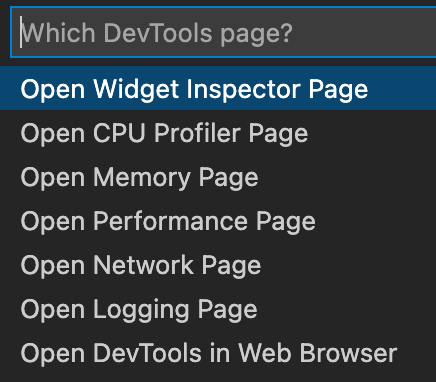
In VSCode, users can open these individual pages via the "Dart: Open DevTools" command:
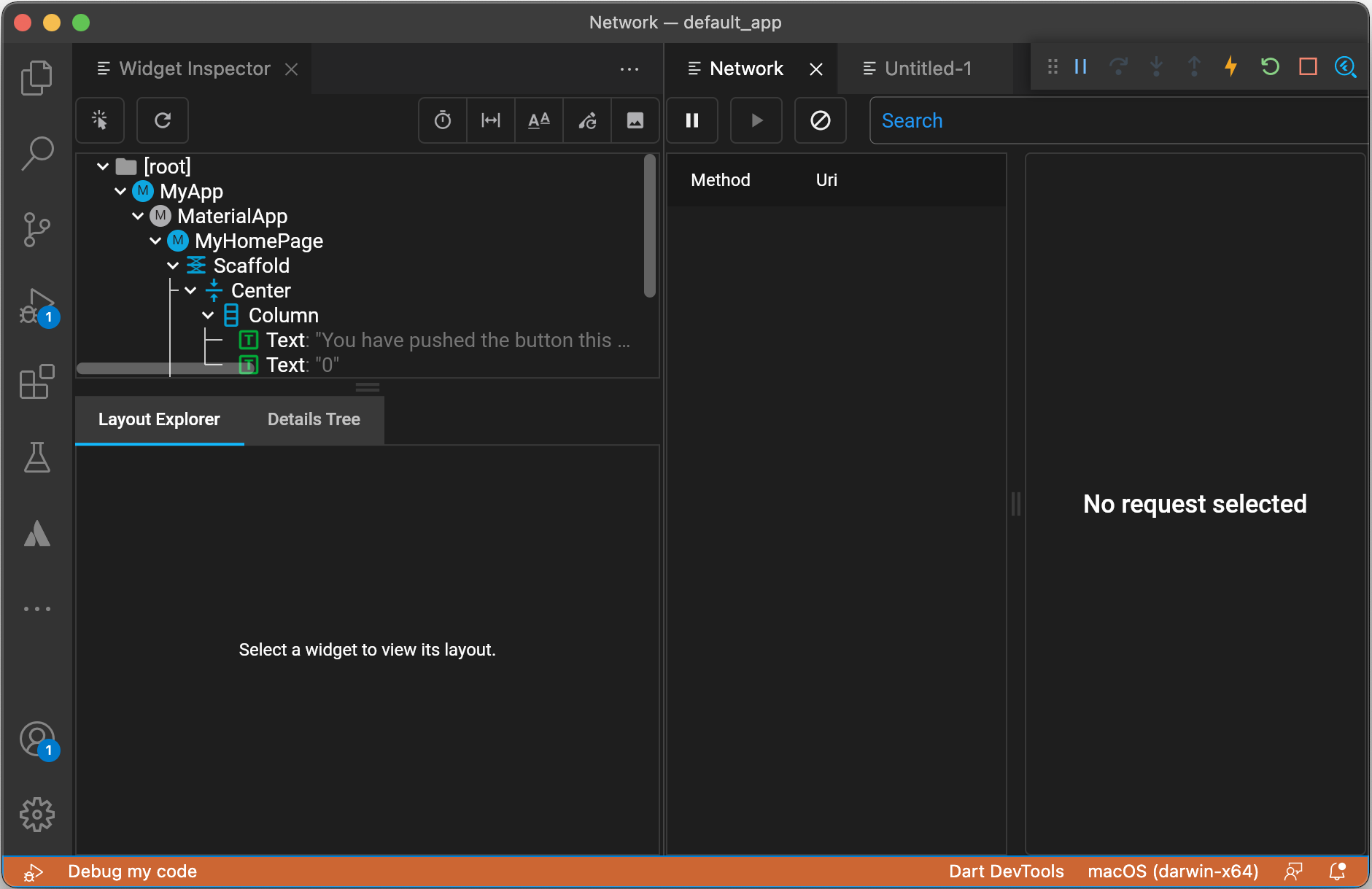
Pages can be opened in different tabs, and can be arranged using VSCode's UI:
When embedded in an IDE, the UI defaults to dense mode, with smaller paddings and sizings. Dense mode can be enabled in settings when running in a browser.
DevTools has three elements of the IDE's theme passed to it: foreground color, background color and font size.
If the IDE's background color is sufficiently dark or light (based on luminance), DevTools uses it as its own background color, and uses the appropriate light or dark mode. The base color of DevTools will probably be different when embedded in an IDE than when running in a web browser.
In VSCode, the iframe hosting DevTools is sandboxed, placing restrictions on what it can do. For example allow-popups is not enabled, so DevTools cannot directly open other URLs.
The allowed restrictions are allow-scripts allow-forms allow-same-origin allow-pointer-lock allow-downloads, anything else in the full list of restrictions is not permitted.