简体中文 | English | Powershell Gallery | Github | Gitee







Star ⭐️ or Donate 💰 if you like it!
Tip
- PowerShell(pwsh): A cross-platform PowerShell (Core). Start it by running
pwsh/pwsh.exe. - Windows PowerShell: A PowerShell (Desktop) which is built-in on Windows system. Start it by running
powershell/powershell.exe. - They can both use
PSCompletions, but PowerShell(pwsh) is more recommended.
A completion manager for a better and simpler tab-completion experience in PowerShell.
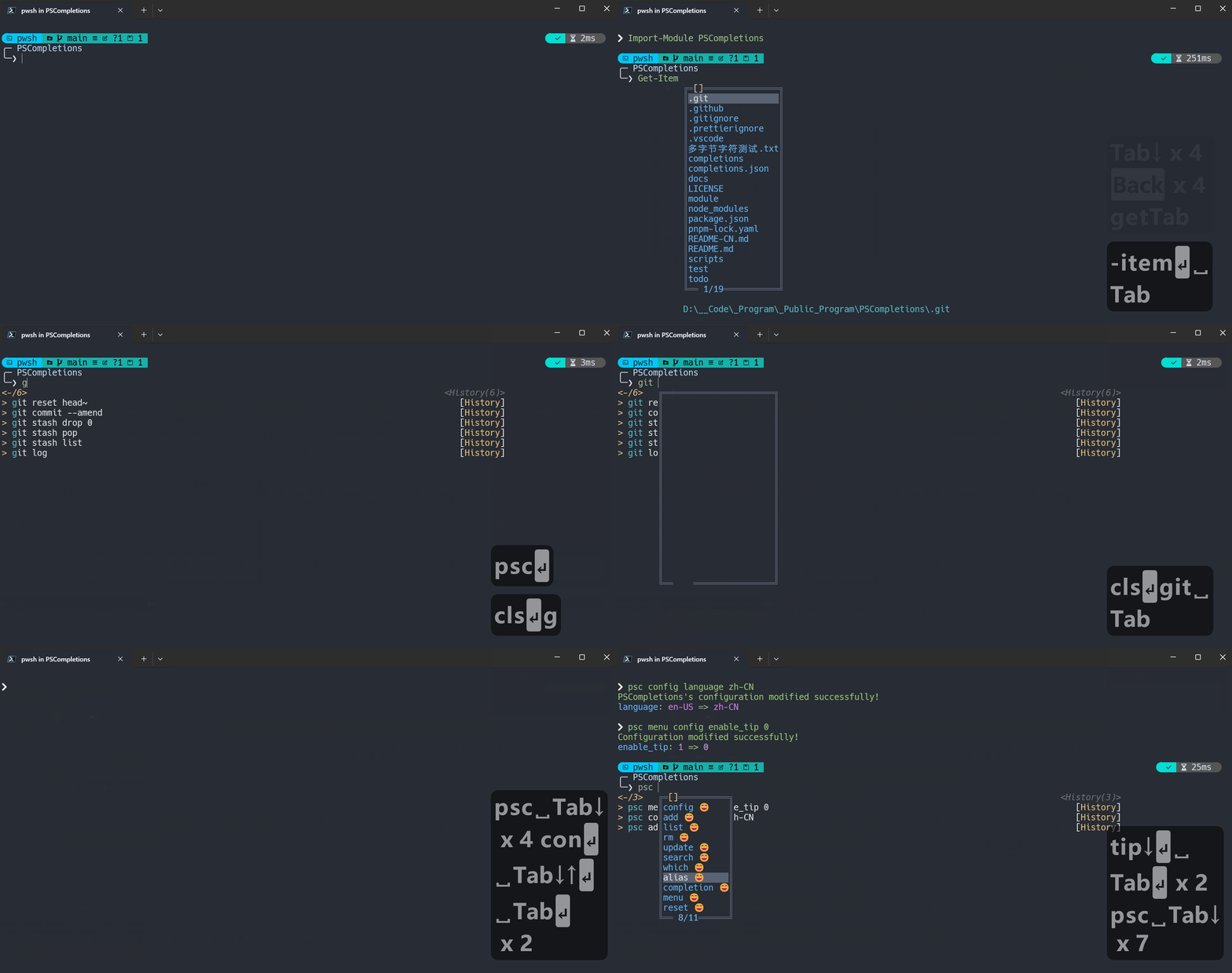
- More powerful completion menu.
- Manage completions together.
- Sort completion items dynamically by frequency of use.
- Switch between languages(
en-US,zh-CN,...) freely. - Combined with argc-completions.
Tip
- If it cannot be displayed here, you can check it on the official website..
- Click to view the videos on Bilibili.
See the Changelog for details.
See the FAQ.
See the Contribution Guide for details.
-
Install module:
-
Use Install-Module:
Install-Module PSCompletions -Scope CurrentUser
-
Use Install-PSResource:
Install-PSResource PSCompletions -Scope CurrentUser
-
Use Scoop:
-
-
Import module:
Import-Module PSCompletions
-
Take
gitas an example.- Add completion:
psc add git - Then you can enter
git, pressSpaceandTabkey to get command completion.
- Add completion:
-
Only use
PSCompletionsas a better completion menu withoutpsc add.-
If there is an official completion for
xxx, a similar command can be run:xxx completion powershell | Out-String | Invoke-Expression
-
For more details, please refer to About menu enhance.
-
PSCompletionsuses theTabkey by default.- You can set it by running
psc menu config trigger_key <key>.
Warning
- If you need
Set-PSReadLineKeyHandler -Key <key> -Function <MenuComplete|Complete> - Please add it before
Import-Module PSCompletions
-
In addition to the built-in completion menu of
PowerShell,PSCompletionsmodule also provides a more powerful completion menu.- Setting:
psc menu config enable_menu 1(Default:1) - You can run
pscto view the related key bindings.
- Setting:
-
It is only available in Windows, because PowerShell in Linux/MacOS does not implement the relevant methods.
-
All configurations of it, you can trigger completion by running
psc menu, then learn about them by the completion tip.- For configured values,
1meanstrueand0meansfalse. (It applies to all configurations ofPSCompletions) - Some common menu behaviors:
- Auto-apply when there's only one completion item:
psc menu config enable_enter_when_single 1 - ...
- Auto-apply when there's only one completion item:
- For configured values,
-
Setting:
psc menu config enable_menu_enhance 1(Default:1) -
Now,
PSCompletionshas two completion implementations.- Set-PSReadLineKeyHandler
- It's used by default.
- Requires:
enable_menuandenable_menu_enhanceboth set to1.
- Requires:
- It use TabExpansion2 to manage completions globally, not limited to those added by
psc add.- Path completion such as
cd/.\/..\/~\/... - Build-in commands such as
Get-*/Set-*/New-*/... - Completion registered by Register-ArgumentCompleter
- Combined with argc-completions.
- Completion registered by cli or module.
- ...
- Path completion such as
- It's used by default.
- Register-ArgumentCompleter
- You can use it by running
psc menu config enable_menu_enhance 0. - It only works for completions added by
psc add.
- You can use it by running
- Set-PSReadLineKeyHandler
Optional Completions: some command completions that like-*, such as--globalingit config --global.- You should use option completion first.
- Taking
gitas an example, if you want to entergit config user.name --global xxx, you should use--globalcompletion first, and then useuser.name, and then enter the namexxx. - For options ending with
=, if there's completion definition, you can directly press theTabkey to get the completions.
- Take
gitfor example, when enteringgit add, pressing theSpaceandTabkeys, path completion will not be triggered, only completion provided by the module will be triggered. - If you want to trigger path completion, you need to enter a content which matches
^(?:\.\.?|~)?(?:[/\\]).*. - e.g.
- Enter
./or.\and pressTabkey to get path completion for the subdirectory or file. - Enter
../or..\and pressTabkey to get path completion for the parent directory or file. - Enter
/or\and pressTabkey to get path completion for the sibling directory. - More examples:
~//../../...
- Enter
- So you can enter
git add ./and then pressTabkey to get the path completion.
Tip
- Due to changes in Windows Terminal, 😄🤔😎 cannot be displayed properly in the completion menu, so they will be replaced.
- Related issue: microsoft/terminal#18242
- New symbols:
~,?,!
-
Special symbols after the completion item are used to let you know in advance if completions are available before you press the
Tabkey.- They only exist in completions added by
psc add. - They can be customized by running
psc menu symbol <type> <symbol> - For example, you can replace them with empty strings to hide them.
psc menu symbol SpaceTab ""psc menu symbol OptionTab ""psc menu symbol WriteSpaceTab ""
- They only exist in completions added by
-
~,?,!: If there are multiple, you can choose the effect of one of them.~: It means that after you apply it, you can pressTabkey to continue to get completions.?: It means that after you apply the option completion, you can pressTabkey to continue to get current list of completion items.!: It means that after you apply the option completion, you should enter a string, then pressTabkey to continue to get current list of completion items.- If the string has spaces, please use
"or'to wrap it. e.g."test content" - If there's also
~, it means that there's some preset completions, you can pressTabkey to continue to get them without entering a string.
- If the string has spaces, please use
-
The completion tip is only a helper and can be used as needed.
- Disable it for all completions:
psc menu config enable_tip 0 - Disable it for a specific completion:
psc completion git enable_tip 0
- Disable it for all completions:
-
General structure of the completion tip:
Usage+Description+ExampleU: install, add [-g, -u] [options] <app> This is a description of the command. E: install xxx add -g xxx
-
Example Analysis:
- Usage: Begin with
U:- command name:
install - command alias:
add - required parameters:
<app>appis a simple summary of the parameters.
- optional parameters:
-g-u[options]: Some options.
- command name:
- Description: The description of the command.
- Example: Begin with
E:
- Usage: Begin with
Global language: Default to the language of current system.- You can show it by running
psc config language. - You can change it by running
psc config language zh-CN.
- You can show it by running
Completion language: The language set for the specified completion.- e.g.
psc completion git language en-US.
- e.g.
Available language: In the completionconfig.jsonfile, there is alanguageattribute whose value is a list of available languages.
- If there is
Completion language,use it. If not, useGlobal language. - Determine the final language:
- Determine whether the value of the first step exists in
Available language. - If it exists, use it.
- If not, use the first of the
Available language. (It's usuallyen-US)
- Determine whether the value of the first step exists in
- PS-GuiCompletion: The completion menu provided by the module is inspired by it.


![@github-actions[bot]](https://avatars.githubusercontent.com/in/15368?s=64&v=4)
